Getting started with DOXIO
The first few steps after signing up — create your organization, activate a plan, upload your first PDF, send it for signature and invite colleagues.
Updated October 27, 2026
On this page
This guide walks you through everything you need to do after signing up so you can send your first document for signature. The whole setup takes a few minutes. Each step links to a more detailed article.
Sign up and verify your e-mail#
- On the Create account page, fill in your Full name, Email and Password (at least 8 characters).
- We send a six-digit code to that e-mail. Enter it in the Verification code field and click Verify and continue.
If the code doesn't arrive, check your spam folder or request a new one with Resend code.
Create your organization#
The organization is the shared space for your office's documents, clients and team. After your first sign-in, DOXIO asks you to create one.
- Enter the name of your office or company in Organization name. You can change it later.
- Under What does your organization do?, pick your field: Accounting and tax, Law firm, Real estate, HR and staffing or Something else. Optionally fill in How many people are in your team?.
- Click Create organization.
Next, a page lets you enter your company ID and fill in your company details with Look up in ARES (save them with Save company details). Below, Where to start lists recommended first steps for your field, such as a workspace board or the accounting setup wizard. Nothing switches on by itself; each link only opens the place where you do the step. You can skip both with Go to dashboard.
The Dashboard then shows a Getting started bar with steps for your field. An accounting firm sees, for example, activating a plan, creating a client workspace, inviting a client and setting up accounting; a law firm sees uploading a contract, sending it for signature, opening a case file and a template with variables. A step ticks itself off once you have done it. All steps shows the full list with a link to the right place and a guide for each step. You can change your field in Settings → Branding under Field and team size.
To hide the bar, click Hide guide in the expanded list. Bring it back from the account menu (top right) with Getting started guide.
Activate a plan#
You can upload and send documents only with an active plan. Every plan starts with a 14-day trial, and you pay only after it ends.
- On the Dashboard, click Choose a plan, or open Settings → Billing.
- Pick a plan (Start, Tým, Kancelář or Enterprise) and complete the checkout.
Plans differ in the number of team seats, active client workspaces, storage and some features. See Subscription for a comparison.
Upload your first document#
- Open Documents in the top menu.
- Click Upload PDF and choose one or more PDF files (up to 50 MB each).
- After uploading a single file, its detail page opens right away. If you upload several files at once, they stay in the list as Draft.
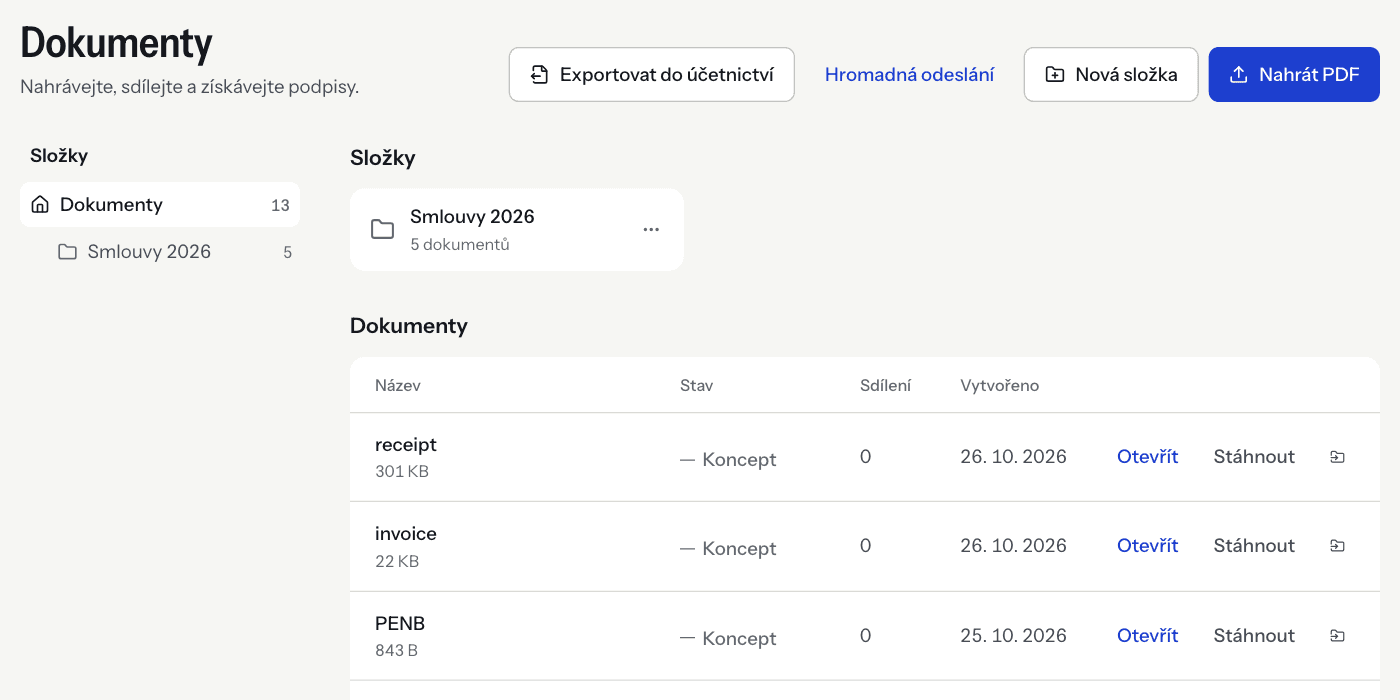
You can organize documents into folders with New folder. When you upload inside an open folder, the document is saved straight into it. On a phone there is also a Scan a document button: photograph a paper document page by page (up to 30 pages) and DOXIO turns the photos into one PDF.
Send it for signature#
- On the document's Signing tab, you'll find the Send for signature form.
- Enter the signer's Email, optionally their name, and the Language of the e-mails they receive.
- Use Place signature to choose where the signature appears in the document.
- Click Send.
The signer receives a link by e-mail. Before opening the document they verify themselves with a one-time code from that e-mail, then sign right in the browser without creating an account. Once they've signed, the document page offers Download signed PDF.
Multiple signers, signing order, fields to fill in, reminders and the signature certificate are covered in Signing a document. If you send the same document again and again, save it as a template — see Templates and variables.
Invite colleagues#
- Open Settings → Team.
- Under Invite a teammate, enter the Email and choose a Role: Member or Admin.
- Click Send invite. Your colleague receives an e-mail with a link and, after signing in, accepts the invitation with Accept and continue.
The number of members is limited by the seats in your plan. Roles are explained in Team and roles.
Client workspaces#
Under Workspaces you create a shared space for each client. The client uploads the documents you ask for through the client portal and sees their status. You sort them on a board, label them and keep track of what is still missing. Create one with New workspace.
The number of active workspaces depends on your plan (Start 10, Tým 75, Kancelář 300, Enterprise unlimited). Archived workspaces don't count towards the limit. See Client workspaces and Client portal.
Where to find settings#
All organization settings live under Settings in the top menu. The left column lists the individual sections.
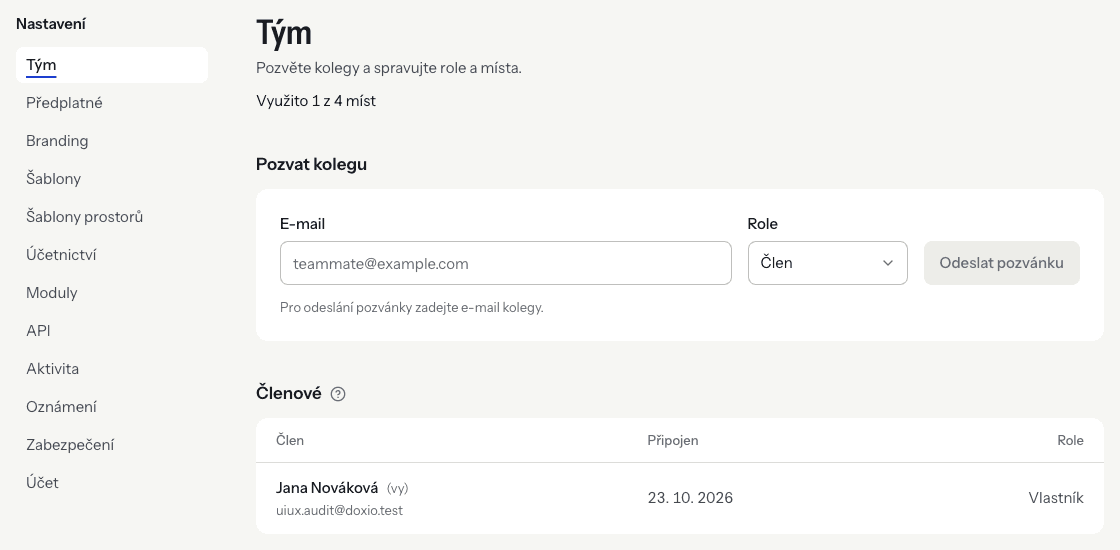
| Section | What you set there |
|---|---|
| Team | Invitations, roles and removing members |
| Billing | Plan, seats, payments and invoices |
| Branding | Organization name, company details (company ID, VAT ID, address), logo and colours for clients, organization signature |
| Templates | Document templates for signing |
| Workspace templates | Ready-made boards for new client workspaces |
| Accounting | Turning accounting on, booking rules and the connection to your accounting software |
| Modules | Optional add-ons such as AI extraction |
| API | API keys and webhooks |
| Activity | A log of every action in the organization |
| Notifications | A summary e-mail of what is waiting for you |
| Security | Two-factor authentication, passkeys and signed-in devices |
| Account | Exporting organization data, deleting your account or the organization |
- Section
- Team
- What you set there
- Invitations, roles and removing members
- Section
- Billing
- What you set there
- Plan, seats, payments and invoices
- Section
- Branding
- What you set there
- Organization name, company details (company ID, VAT ID, address), logo and colours for clients, organization signature
- Section
- Templates
- What you set there
- Document templates for signing
- Section
- Workspace templates
- What you set there
- Ready-made boards for new client workspaces
- Section
- Accounting
- What you set there
- Turning accounting on, booking rules and the connection to your accounting software
- Section
- Modules
- What you set there
- Optional add-ons such as AI extraction
- Section
- API
- What you set there
- API keys and webhooks
- Section
- Activity
- What you set there
- A log of every action in the organization
- Section
- Notifications
- What you set there
- A summary e-mail of what is waiting for you
- Section
- Security
- What you set there
- Two-factor authentication, passkeys and signed-in devices
- Section
- Account
- What you set there
- Exporting organization data, deleting your account or the organization
Next steps#
- Signing a document — everything about sending for signature and what the signer sees.
- Templates and variables — recurring contracts and powers of attorney without manual retyping.
- Bulk send — one document to many recipients at once.
- Client workspaces — collecting documents from clients.
- Accounting settings — passing documents on to your accounting.
- Two-factor authentication — better protection for your account.