Team and roles
How to invite teammates to your organization, what an owner, admin and member can do, how to change a role or remove a member, and what to do when seats run out.
Updated October 28, 2026
On this page
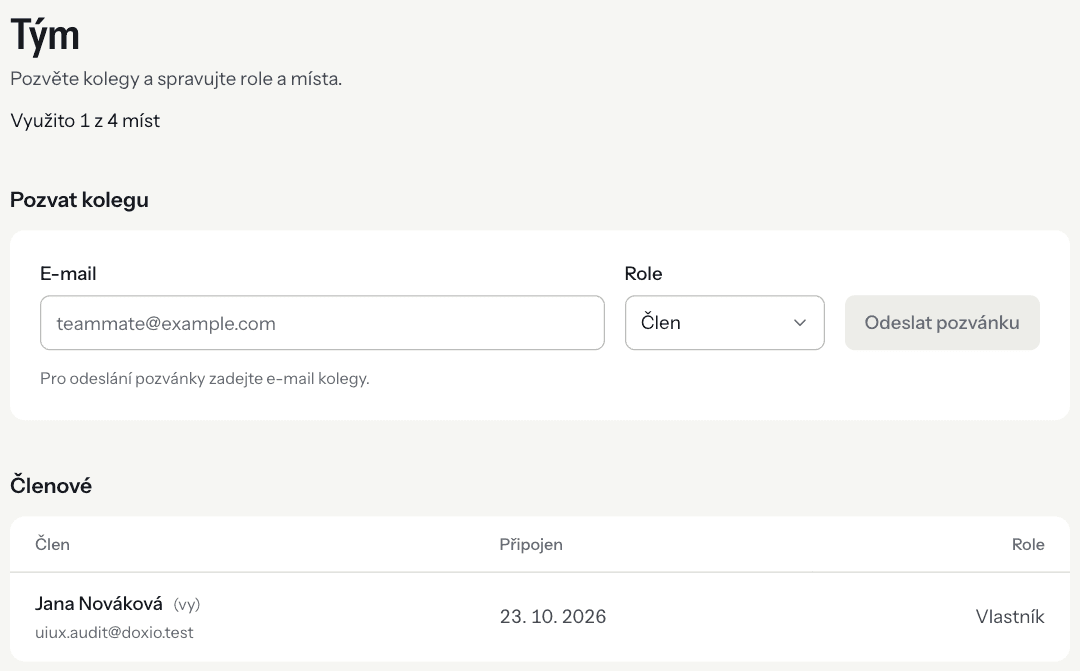
You invite teammates in Settings → Team. Every member has one of three roles — Owner, Admin or Member — and DOXIO uses it to decide what they can do in the organization. The number of members is limited by the seats on your plan.
Roles and what they can do#
- Owner — created the organization and has every permission, including a few only the owner has.
- Admin — works with documents, clients and workspaces and manages the organization (team, billing, branding, accounting, API).
- Member — sees documents, clients and workspaces but doesn't create, send or change anything.
| What | Owner | Admin | Member |
|---|---|---|---|
| View documents, clients and client workspaces (workspaces possibly only assigned ones, see Workspace access) | yes | yes | yes |
| Write internal notes on workspace cards and mention colleagues (Tasks and mentions) | yes | yes | yes |
| Upload, send for signature and share documents, withdraw shares, delete documents | yes | yes | no |
| Create, edit and delete clients | yes | yes | no |
| Create, edit, archive and delete client workspaces | yes | yes | no |
| Manage document templates | yes | yes | no |
| Invite teammates, change roles and remove members | yes | yes | no |
| Manage the subscription, seats and AI pack | yes | yes | no |
| Branding and company details | yes | yes | no |
| Accounting settings, document accounting data and accounting exports | yes | yes | no |
| API keys and webhooks | yes | yes | no |
| View Activity and export the organization's data | yes | yes | no |
| Switch modules on (e.g. AI extraction) in Settings → Modules | yes | no | no |
| Require two-factor authentication for every member | yes | no | no |
| Delete the organization | yes | no | no |
- What
- View documents, clients and client workspaces (workspaces possibly only assigned ones, see Workspace access)
- Owner
- yes
- Admin
- yes
- Member
- yes
- What
- Write internal notes on workspace cards and mention colleagues (Tasks and mentions)
- Owner
- yes
- Admin
- yes
- Member
- yes
- What
- Upload, send for signature and share documents, withdraw shares, delete documents
- Owner
- yes
- Admin
- yes
- Member
- no
- What
- Create, edit and delete clients
- Owner
- yes
- Admin
- yes
- Member
- no
- What
- Create, edit, archive and delete client workspaces
- Owner
- yes
- Admin
- yes
- Member
- no
- What
- Manage document templates
- Owner
- yes
- Admin
- yes
- Member
- no
- What
- Invite teammates, change roles and remove members
- Owner
- yes
- Admin
- yes
- Member
- no
- What
- Manage the subscription, seats and AI pack
- Owner
- yes
- Admin
- yes
- Member
- no
- What
- Branding and company details
- Owner
- yes
- Admin
- yes
- Member
- no
- What
- Accounting settings, document accounting data and accounting exports
- Owner
- yes
- Admin
- yes
- Member
- no
- What
- API keys and webhooks
- Owner
- yes
- Admin
- yes
- Member
- no
- What
- View Activity and export the organization's data
- Owner
- yes
- Admin
- yes
- Member
- no
- What
- Switch modules on (e.g. AI extraction) in Settings → Modules
- Owner
- yes
- Admin
- no
- Member
- no
- What
- Require two-factor authentication for every member
- Owner
- yes
- Admin
- no
- Member
- no
- What
- Delete the organization
- Owner
- yes
- Admin
- no
- Member
- no
Some features also depend on the plan, such as enforcing two-factor authentication or bulk sending. See Billing for the overview. If a subscription payment fails or the subscription ends, the organization is read-only for every role.
How to invite a teammate#
Owners and admins can invite.
- Open Settings → Team.
- Under Invite a teammate, enter their Email.
- In Role, choose Member or Admin.
- Click Send invite.
Your teammate gets an e-mail with a link to accept the invitation. The link takes them to sign-in — if they don't have a DOXIO account yet, they create one with Create account. Then they accept with Accept and continue. They must sign in with the same e-mail address the invitation was sent to.
Unanswered invitations are listed under Pending invitations along with the date they expire. Cancel one with Cancel. If an invitation expires, send a new one.
How to change a role or remove a member#
Owners and admins can change other members' roles. You can't change your own role or the owner's.
- Open Settings → Team.
- In the Members list, choose Member or Admin in the teammate's role field. The change is saved right away.
- To remove someone, click Remove and confirm. They lose access to the organization and their seat is freed.
Seats on your plan#
At the top of the Team page you see how many seats are taken, e.g. “3 of 5 seats used”. When you invite, pending invitations count as taken seats too. The seat is actually used once the teammate accepts.
When every seat is taken, the invitation form is replaced by “Every seat on your plan is taken.” You have three options:
- buy one more seat with Buy a seat for … right on the Team page,
- move to a higher plan with Change plan,
- remove a member who no longer needs access.
How many seats each plan includes and what an extra seat costs is covered in Billing.
Workspace team#
Every client workspace has its own team: one responsible person and any number of colleagues who work on it. The client doesn't see the team.
- Open the workspace and switch to the Settings tab.
- Under Team, choose the Responsible person. They get an e-mail when the client uploads something or replies. With nobody selected, the e-mails go to owners and admins.
- In the Team members list, tick the colleagues who work on the workspace. Owners and admins are marked “sees everything”: they always see the workspace, team or not.
- Click Save team.
The team shows in the workspace header and in the Workspaces list as circles with initials; the responsible person comes first with a blue ring. A team can have at most 50 members. Owners and admins set the team, and every change is written to Activity.
Workspace access#
By default everyone in the organization sees every client workspace. If you want colleagues with the Member role to see only the workspaces they work on:
- Open Settings → Team.
- Under Workspace access, turn on Members see only the workspaces they're assigned to.
A member then sees only the workspaces where they're the responsible person or on the team: in the workspace list, on the board, on cards, in requests, on the client page and in search. Other workspaces behave as if they didn't exist. Owners and admins always see every workspace.
An owner or admin can turn it on from the Tým plan. It can be turned off at any time on any plan. If you move to a lower plan, the restriction stays in force until you turn it off.
Troubleshooting#
“This invitation has expired, been revoked, or was already accepted.” Ask an owner or admin for a new invitation.
“This invitation is for …, but you're signed in as …” Sign out and sign in with the e-mail address the invitation was sent to.
I can't see the invitation form. Your role is Member. Ask an owner or admin to invite your teammate or to change your role.
Securing members' accounts is covered in Two-factor authentication and passkeys.