Signing a document
How to upload a PDF, choose signers and their order, place the signature and fields, send it for signature and download the signed document with its certificate.
Updated October 28, 2026
On this page
- How to upload a PDF
- Document versions
- How to add signers
- Signing order
- How to place the signature
- Fields to fill in
- Requested attachments
- Link validity and reminder
- How to send the document
- What the signer sees
- How to track the status
- Downloading the signed document
- Signature certificate
- Sharing a document for viewing only
- Troubleshooting
With DOXIO you send a PDF to one or more signers. Each of them gets their own link by e-mail, verifies with a one-time code and signs in the browser — no account and no installation needed. You then download the signed PDF with its signature certificate.
Uploading and sending documents is available to the organization's Owner and Admins on an active plan. Multiple signers, signing order and fields are included in every plan.
How to upload a PDF#
- Open Documents and click Upload PDF.
- Choose a PDF file (up to 50 MB). You can select several files at once.
- After uploading a single file, the document opens on its Signing tab.
Only PDF files can be uploaded. On a phone you can photograph a paper document with Scan a document — DOXIO turns the photos of the individual pages into one PDF.
Document versions#
If a document needs a fix before it is signed, upload a new version. You will find it on the document's Preview tab, in the Document versions section.
- Under PDF file, choose the corrected file.
- In Note (optional) you can say what changed (up to 500 characters).
- Click Upload version.
The new version becomes the current one — the one signers see and sign. Earlier versions stay in the history, can be downloaded, and count towards your storage until you delete the document. Each version shows the date, who uploaded it, the file name, size, page count and the start of its SHA-256 fingerprint (hover to see all of it).
You can upload a new version only while the document is not signed and no signing is in progress: no signer is waiting to sign and nobody has signed yet. Expired links do not block an upload. If an upload is not possible, the reason is shown below the list of versions.
Comparing versions: Compare with previous next to a version, or the Compare two versions link, opens the comparison. It shows the page count, size and SHA-256 of both versions and whether the files are identical. Side by side shows the pages of both versions; Differences marks the pixels that differ in red and labels each page "no changes" or how much of it changed. The comparison is purely visual — it does not compare text.
How to add signers#
The Send for signature form is on the document's Signing tab.
- For Signer 1, enter the Email and optionally the Name (optional).
- In Language, choose whether the signer gets the e-mails and the signing page in Czech or English.
- Add another signer with Add signer (up to 10 signers). Each one needs a different e-mail.
- If someone from your organization should sign too, use Add me — it adds you with your own e-mail.
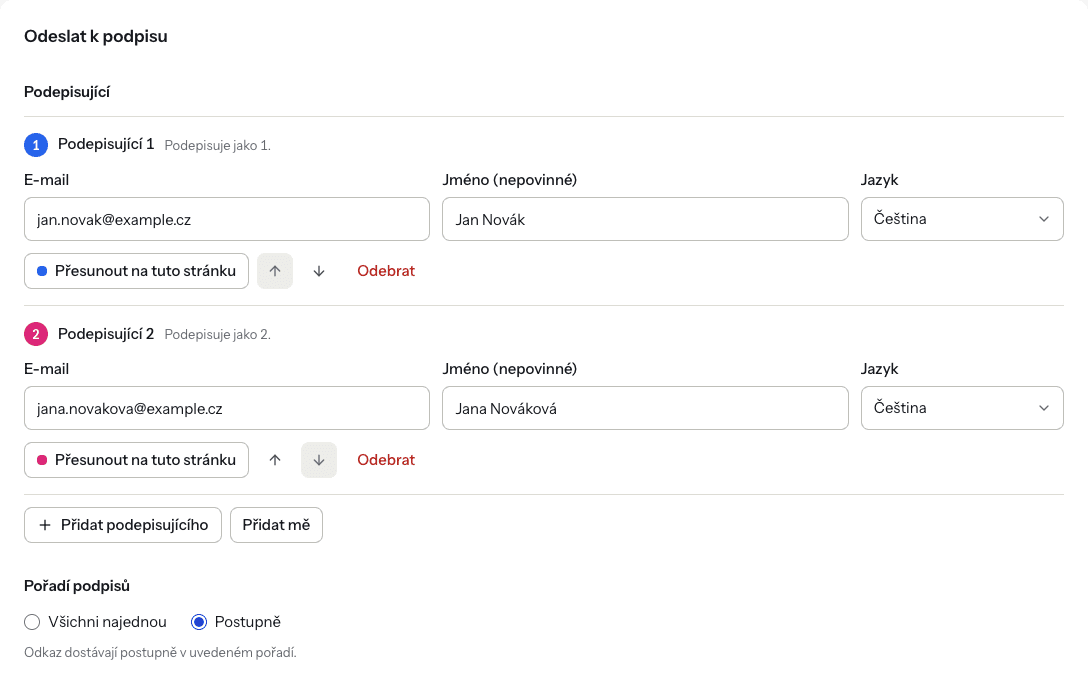
Each signer has their own colour. The same colour marks their signature and fields in the document preview.
Signing order#
Once there is more than one signer, choose under Signing order:
- All at once — everyone gets the link now and can sign in any order.
- One after another — signers get the link one by one, in the order listed. The next signer is e-mailed once the previous one has signed.
Change the order with the Move up and Move down arrows or by dragging a signer in the list. Remove a signer with Remove.
How to place the signature#
- In the Signature placement preview, use the arrows to go to the page where the signature belongs.
- Click Place signature next to the signer. A box in their colour appears on the current page.
- Drag the box into place. Drag a corner to resize it.
- To move the signature to a different page, go to that page and click Move to this page.
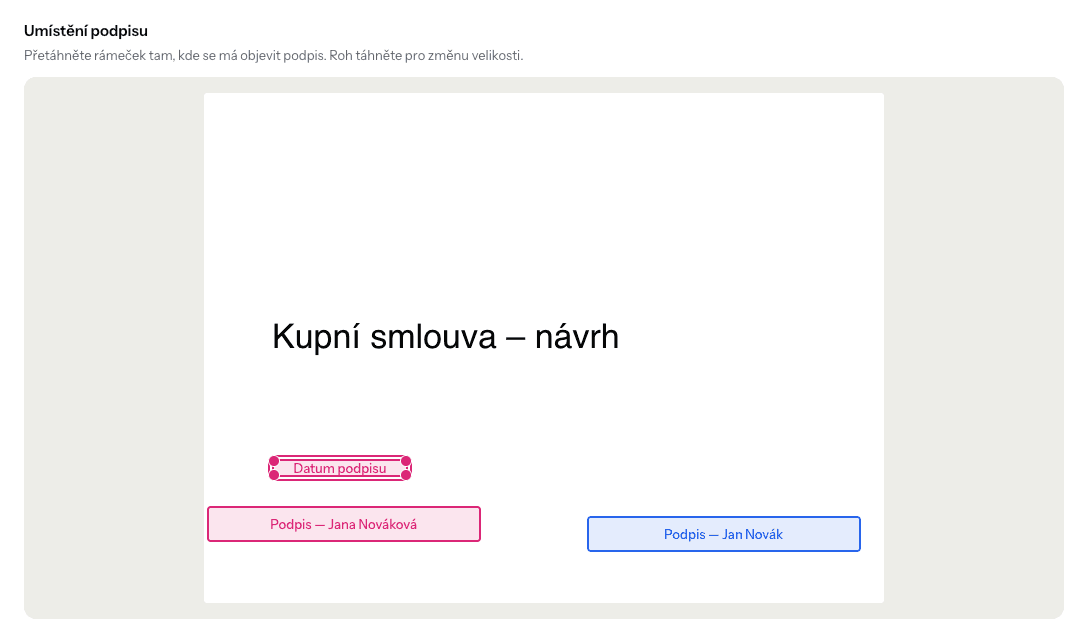
If you don't place the signature, DOXIO puts it in the default spot at the bottom centre of the last page.
Fields to fill in#
Besides the signature you can add fields to the document: Text, Date or Checkbox.
- Under Fields, click a field type. The field is added to the current preview page.
- Fill in the Label (e.g. "ID card number"). A label is required.
- In Filled by, choose a signer or Prefilled by me.
- Drag the field into place in the preview.
A field assigned to a signer is completed by them when signing. Tick Required so they cannot sign without filling it in. For a Prefilled by me field you enter the Value right away — it is printed into the document exactly as you typed it. Filled-in values appear both in the signed PDF and in the signature certificate.
Requested attachments#
You can ask a signer for files before they sign, for example a copy of their ID card or a power of attorney.
- Next to the signer in the Send for signature form, click Request an attachment.
- Type the attachment's name, for example "Copy of ID". Common names are suggested.
- Tick Required so the signer cannot sign without it. An optional attachment can be skipped.
You can request up to 5 attachments per signer. The signer uploads them on the signing page as PDF, JPG or PNG up to 10 MB; DOXIO converts a photo to PDF. Until they sign, they can replace or remove a file.
Uploaded attachments are on the document's Signing tab under Attachments from signers — open or download them there. The signature certificate lists each signer's attachment names with their SHA-256 fingerprint. Attachments use your organization's storage and are deleted together with the document.
Link validity and reminder#
- Expires in (days) — after how many days the link stops working. Enter 1 to 90 days; the default is 14.
- Remind after (days) — 0 means no reminder. Otherwise DOXIO sends one reminder after that many days to signers who haven't signed yet. The reminder must come before the link expires.
The reminder contains a new link, and the previous link stops working. In a one-after-another round, the days count from the moment the signer received their link.
How to send the document#
Click Send. If the button is disabled, the reason is shown below it, for example Enter the signer's email to send.
After sending, you see a list of signers with the delivery status of each:
- email sent — the link went out,
- will get the link on their turn — in a one-after-another round,
- email not delivered — resend from the table — use Resend in the Shares table.
What the signer sees#
The signer receives an e-mail with a link. The signing page shows your organization's name (and, from the Tým plan, your logo and colour) and takes them through three steps: Verify, Review & sign and Done.
Verification code#
- The signer clicks Email me a code.
- A six-digit code valid for 10 minutes arrives at their e-mail.
- They enter it in Verification code and click Continue.
After five wrong attempts the code is locked and they need a new one via Send a new code. This is how DOXIO confirms the document is opened by the actual owner of the mailbox.
Signing#
- The signer reviews the whole document in the preview. A watermark with their e-mail and the viewing time is shown over it.
- They enter Your full name and complete any Fields to complete.
- They choose how to sign: Type (the signature is made from their name) or Draw (with a finger or mouse).
- They click Sign document, confirming that this is their electronic signature on the document.
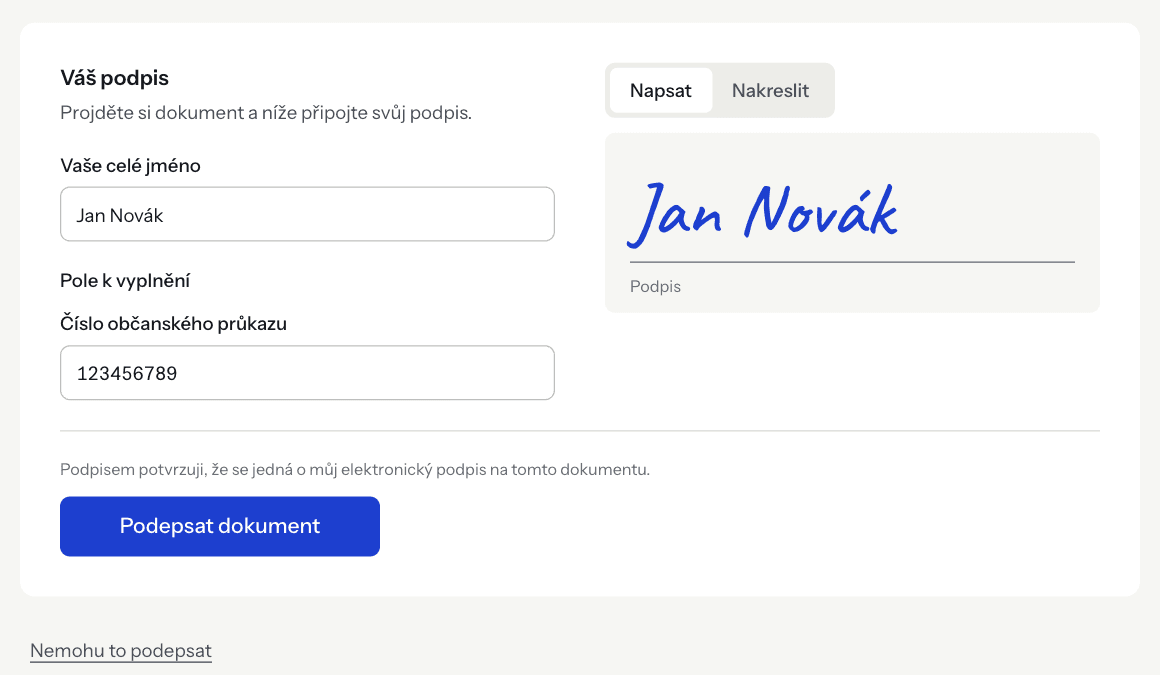
Once everyone has signed, each signer receives the completed document by e-mail. If others still need to sign, the signer is told the document will be e-mailed once everyone has signed.
Declining#
Instead of signing, the signer can click I can't sign this, add an optional reason and confirm with Decline. You receive an e-mail including the reason. The document moves to Rejected and the other signers' links stop working.
You can send a rejected document again: the Send for signature form is prefilled from the previous attempt, so just adjust what's needed and click Send.
In-person signing#
When the client is at your office, they don't have to wait for an e-mail. They sign the document on your tablet or computer.
- On the document's Signing tab, click Sign on this device next to the signer.
- Check the client's identity against an ID document and tick the box. You can also note the end of the document number — at most the last 6 characters are stored.
- Click Hand over the device. DOXIO signs you out on this device and opens a page with nothing but the document to sign.
- The client reads the document, uploads any requested attachments and signs. They don't need an e-mail code.
- After signing, Please hand the device back is shown. Only you can continue — enter your password to return to the document.
The client can also choose Don't sign and return the device — the document stays unsigned and their e-mailed link still works. In-person signing lasts at most 30 minutes.
For such a signature the certificate says Signed in person in the presence of your name, plus the end of the ID document number if you noted it. The document history records who started the in-person signing. In a one-after-another round, only the signer whose turn it is can sign in person.
How to track the status#
You'll see the status in the Documents list, in the document header and under Awaiting signature on the Dashboard.
| Document status | Meaning |
|---|---|
| Draft | Uploaded, not sent yet |
| Sent | The link went out, nobody has opened the document yet |
| Viewed | A signer opened the document |
| Signing | All signatures are in and DOXIO is producing the signed PDF |
| Signed | Signed, but the signed copy hasn't been delivered yet |
| Completed | Signed and the copy delivered to the signers |
| Rejected | A signer declined to sign |
- Document status
- Draft
- Meaning
- Uploaded, not sent yet
- Document status
- Sent
- Meaning
- The link went out, nobody has opened the document yet
- Document status
- Viewed
- Meaning
- A signer opened the document
- Document status
- Signing
- Meaning
- All signatures are in and DOXIO is producing the signed PDF
- Document status
- Signed
- Meaning
- Signed, but the signed copy hasn't been delivered yet
- Document status
- Completed
- Meaning
- Signed and the copy delivered to the signers
- Document status
- Rejected
- Meaning
- A signer declined to sign
The Shares table on the Signing tab lists every signer separately, with the progress above it, e.g. 1 of 2 signed. For signers who haven't signed yet you have two actions:
- Resend — sends a new link. The earlier link stops working.
- Revoke — the recipient loses access immediately, even if they are viewing the document right now.
Until the document is signed, you can add another signer under Add signer. The new signer signs after everyone already listed. Whenever someone signs, you get an e-mail saying who is still pending. The full history of the document (sending, viewing, signatures) is on the History tab.
Downloading the signed document#
Once everyone has signed, DOXIO creates the signed PDF with all signatures and filled-in fields. You receive an e-mail notice, and the document page offers:
- Download signed PDF — the signed document,
- Original — the file you uploaded,
- Download certificate — only in separate-certificate mode (see below).
The Signing tab also shows who signed and when. A signed document cannot be deleted.
Signature certificate#
For every signed document DOXIO issues a signature certificate with an audit trail. It contains:
- the SHA-256 fingerprint of exactly the version of the document the signers saw and signed,
- the name and e-mail of each signer, confirmed with a one-time code,
- the time of signing, IP address and device (browser) for each signer,
- the values of filled-in fields,
- whether signing was sequential or parallel,
- a legal statement.
Times on the certificate are in UTC. By default the certificate is the last page of the signed PDF. From the Tým plan, you can choose Separate certificate PDF under Signed document output in Settings → Branding — the signed document then stays unchanged and you get the certificate as its own file. The change applies to newly signed documents.
Sharing a document for viewing only#
If you only need to show someone a document, use Share for viewing on the document page. Enter the Recipient email, optionally a name, the language and validity, and click Create link. The recipient verifies with a one-time code and can only read the document.
To send the same document for signature to many people, each separately, use bulk send. Save a document you send repeatedly as a template.
Troubleshooting#
Upload says "Only PDF files are supported." Only PDFs can be uploaded. Save a document in another format as PDF first.
"That file is larger than the 50 MB limit." Make the file smaller (e.g. scan at a lower resolution) or split it.
"Your storage is full. Upgrade your plan to upload more." You've used up your plan's storage. Upgrade in Settings → Billing.
"You don't have permission to upload documents." You have the Member role, which can only view documents. Ask the owner or an admin to change your role.
The signer didn't get the code. Ask them to check their spam folder, or to request a new code on the page with Send a new code.
The signer sees "Too many attempts. Request a new code to continue." They entered a wrong code five times. They just need to request a new one.
The signer sees "This link is unavailable". The link expired, was revoked or replaced by a newer one (after Resend or a reminder), or the document is already signed. If the link is still valid, send a new one with Resend. An expired link can't be resent — enter the signer again on the document page (depending on the situation you'll see the Send for signature form or Add signer there).
The document says "The signed copy hasn't been delivered to the signer yet." Click Resend signed copy. Once delivered, the document moves to Completed.