Bulk send for signature
How to send one document or template for signature to up to 100 people at once, prepare the recipient list in Excel and follow the sending progress.
Updated October 27, 2026
On this page
Bulk send is for when you need the same document signed by several people who are independent of each other: a data-processing consent, a contract amendment for all clients, or an internal policy for employees. Every recipient gets their own copy, signs it on their own and gets their own signed result. If one recipient does not sign, nobody else is affected.
If instead one document needs to be signed by several people (for example both managing directors), use a regular send with multiple signers, see Signing a document.
Before you start#
- Bulk send is available from the Tým plan. On the Start plan you see an upgrade notice instead of the form, see Subscription and plans.
- Only owners and admins of the organization can send. The Member role does not send documents for signature, see Team and roles.
- Your subscription has to be active. Otherwise you see Your plan doesn't allow sending right now.
- Every copy is stored as a separate document and counts towards your plan's storage. Before sending, DOXIO checks there is enough room for a copy for every recipient.
How to send a document to several people#
- In Documents, open the document you want to send.
- On the Signing tab, find the Send to several people at once block and click Bulk send.
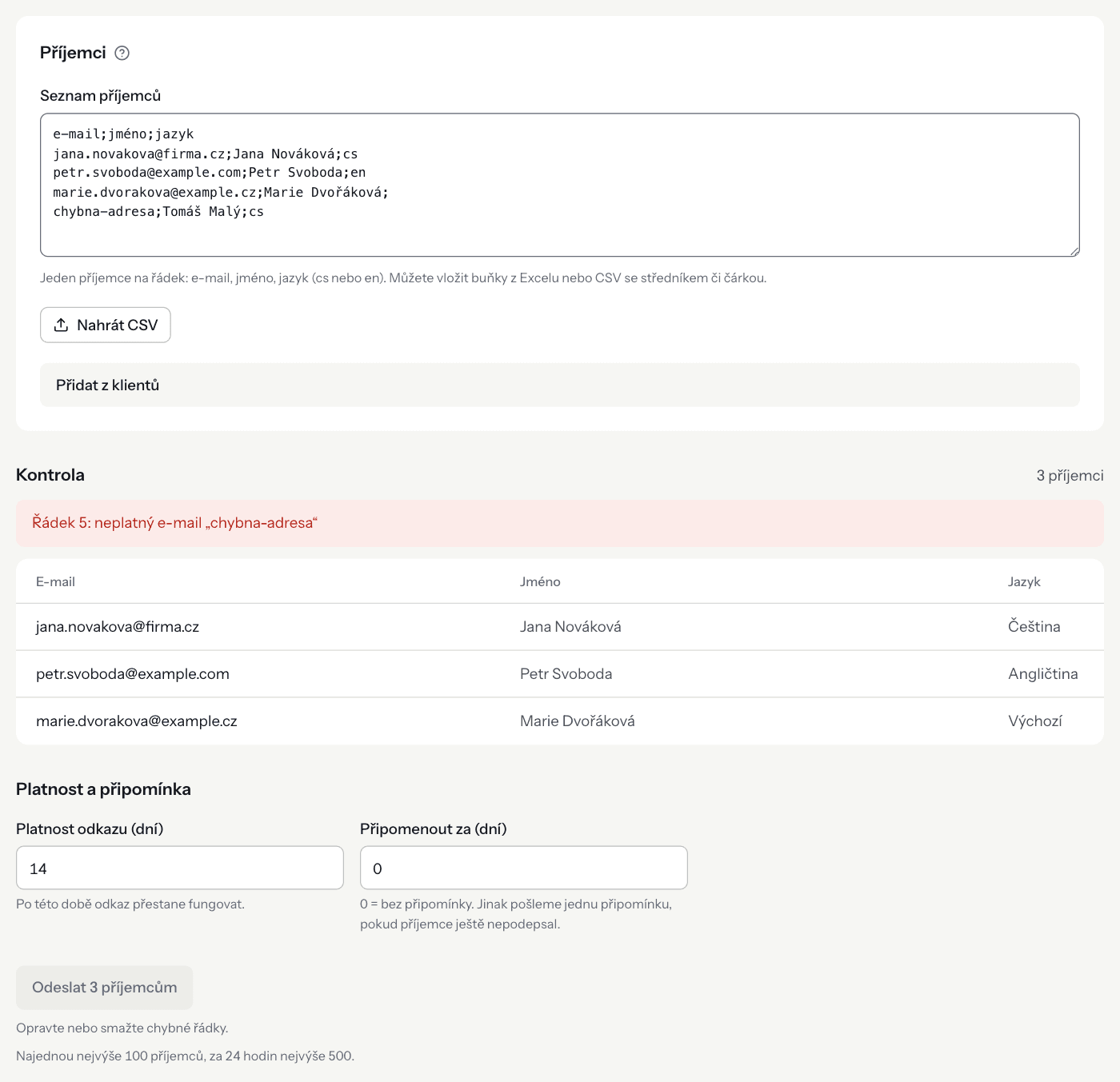
- Paste or upload the recipient list (see Recipient list), or add recipients from your clients.
- Check the table under Review. Lines with problems are listed in red above the table.
- Set Link valid for (days) and, if you like, Remind after (days).
- Click Send to N recipients. The sending progress page opens.
Each copy is named “Document title – recipient name” (or the e-mail when there is no name), is saved in the same folder as the original and shows up in Documents like any other document. If the recipient is also one of your clients, the copy is linked to that client.
Recipient list#
Enter one recipient per line in Recipient list. The easiest way is to copy cells from Excel and paste them; DOXIO detects the separator itself: semicolon, tab (Excel cells) or comma.
Without a header row, the columns are read in the order e-mail, name, language:
jana.novakova@company.com;Jana Nováková;cs
petr.svoboda@example.com;Petr Svoboda;en
Name and language are optional. Enter the language as cs or en (cz, czech and english are recognised too). A line without a language shows as Default in the review.
List with a header row#
If the first line is a header with a column called e-mail (or email, mail), DOXIO matches the columns by name instead of by position:
| Meaning | Recognised column names |
|---|---|
e-mail, email, mail | |
| Name | name, full name, recipient (and the Czech jméno, příjemce) |
| Language | language, lang, locale (and the Czech jazyk) |
- Meaning
- Recognised column names
e-mail,email,mail
- Meaning
- Name
- Recognised column names
name,full name,recipient(and the Czechjméno,příjemce)
- Meaning
- Language
- Recognised column names
language,lang,locale(and the Czechjazyk)
Any other columns are only used when sending a template, see Sending a template. For a document, the form lists them under These columns won't be used: and ignores their content.
Uploading a CSV and picking clients#
- Upload CSV loads a
.csvor.txtfile of up to 1 MB. Its content is put into the list field, where you can still edit it. - In the collapsible Add from clients section you can tick clients that have an e-mail address. The search field matches name, company and e-mail. Picked clients are marked “client” in the review.
- A pasted address that belongs to one of your clients is linked to that client automatically.
Checking the list#
Before sending, DOXIO checks every line and reports problems with the line number:
- invalid email – the address is not well-formed,
- is listed twice – the same address appears again (also when it is already picked from your clients),
- unknown language – the language is neither
csnoren, - closing quote missing – a quoted cell is not closed.
Until you fix or delete those lines, the send button stays disabled with the reason Fix or remove the lines with problems.
Sending a template#
You can also bulk send a document template. Every recipient then gets their own document created from the template, filled in with their details. Templates and variables are covered in Templates and variables.
- Open Settings → Templates and pick the template.
- In the template header, click Bulk send. The button only appears for a template with exactly one recipient.
- Paste a recipient list with a header row. A column named like a template field or variable is filled into it. Column names are compared without diacritics, in lower case and with underscores instead of spaces, so a column
Contract numbermatches the keycontract_number. - Below the table, check the Filled into the template: line listing the matched columns. The values also appear as extra columns in the table.
- Set the expiry and reminder and send.
Things to watch out for:
- Required template fields and variables must be filled in for every recipient, otherwise you see Fill in for every recipient: with the missing fields. A variable with a default value is not required.
- If the template prints client details (
{{klient.*}}variables), every recipient has to be a client. Pick them under Add from clients, or use e-mail addresses saved on your clients. - A template signed on behalf of the organization by an authorised person can only be sent while a signing mandate is active.
- A template with more than one recipient cannot be bulk sent.
Expiry and reminder#
| Setting | Meaning | Range |
|---|---|---|
| Link valid for (days) | After this time the signing link stops working. | 1–90 days, default 14 |
| Remind after (days) | One reminder to a recipient who has not signed yet. 0 = no reminder. | Must go out before the link expires |
- Setting
- Link valid for (days)
- Meaning
- After this time the signing link stops working.
- Range
- 1–90 days, default 14
- Setting
- Remind after (days)
- Meaning
- One reminder to a recipient who has not signed yet.
0= no reminder. - Range
- Must go out before the link expires
The settings apply to every recipient in the batch.
Sending progress#
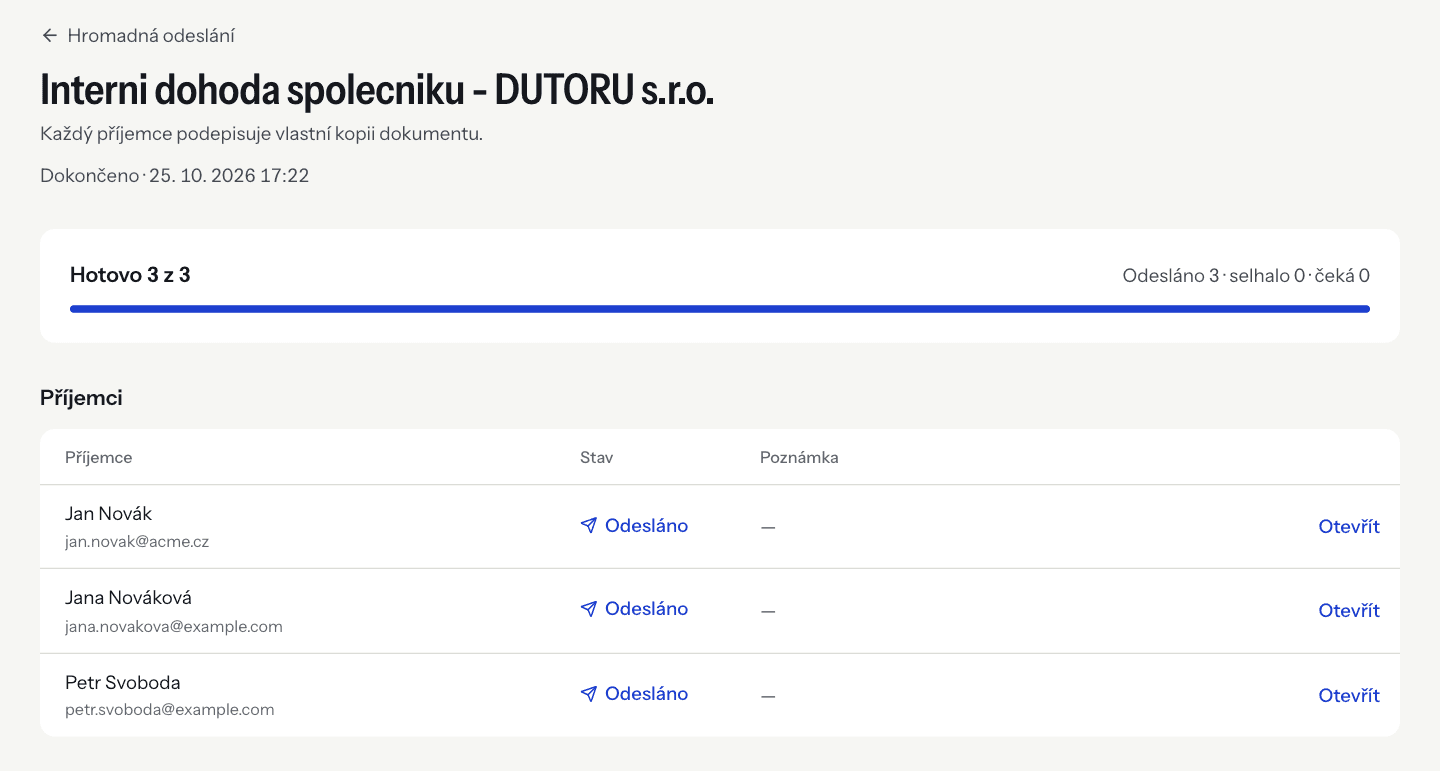
After you click send, the batch page opens. DOXIO sends to recipients one by one so the e-mails don't end up in spam, so a larger batch takes a while. You can close the page; sending continues.
The page shows N of M done, the summary Sent · failed · waiting and a table of recipients with their status and an Open link to their document.
| Recipient status | Meaning |
|---|---|
| Queued | The recipient's turn has not come yet. |
| Sent | The copy was created and the e-mail with the link went out. |
| Failed | Sending failed; the reason is in the Note column. The other recipients keep being sent. |
| Cancelled | You stopped the batch before this recipient's turn. |
- Recipient status
- Queued
- Meaning
- The recipient's turn has not come yet.
- Recipient status
- Sent
- Meaning
- The copy was created and the e-mail with the link went out.
- Recipient status
- Failed
- Meaning
- Sending failed; the reason is in the Note column. The other recipients keep being sent.
- Recipient status
- Cancelled
- Meaning
- You stopped the batch before this recipient's turn.
All bulk sends are listed under Documents → Bulk sends, each with the status In progress, Finished or Stopped and the number sent.
Stopping and continuing#
- Stop sending – recipients still in the queue get nothing. Documents already sent stay valid; you can revoke each one on its own page.
- Continue sending – appears when sending has stopped, most often after a server restart. It continues where it left off and never sends anyone a second copy.
Limits#
| Limit | Value |
|---|---|
| Recipients per batch | 100 |
| Bulk recipients in the last 24 hours (whole organization) | 500 |
| Uploaded CSV size | 1 MB |
| Link validity | 1–90 days |
- Limit
- Recipients per batch
- Value
- 100
- Limit
- Bulk recipients in the last 24 hours (whole organization)
- Value
- 500
- Limit
- Uploaded CSV size
- Value
- 1 MB
- Limit
- Link validity
- Value
- 1–90 days
If you paste more than 100 valid lines, DOXIO uses the first 100 and warns You can send to at most 100 recipients at once. We left out the remaining lines.
Troubleshooting#
- Bulk send is available from Tým. Your organization is on the Start plan. Change the plan in Settings → Billing.
- This would exceed the limit of 500 recipients in 24 hours. Your organization has already bulk sent to so many recipients in the last 24 hours that the new batch would go over the limit. Send to fewer people or try later.
- Several bulk sends were started in the last few minutes. You started several batches within a few minutes. Wait a moment and try again.
- There isn't enough storage for a copy for every recipient. Copies count towards your plan's storage. Free up space or send to fewer people.
- A recipient's note says “The email could not be delivered.” The copy exists, but the e-mail did not go out. Open the document via Open and resend the link from its page.
- Recipients' notes say “The source document changed in the meantime.” The original document's file no longer matches the state the batch was created from, so no copies were made. Start a new batch.
- This template is signed by the organization, but no signing mandate is active. The template expects an organization signature. Set up a signing mandate first, then send the template.
- Only owners and admins can send documents for signature. You have the Member role. Ask an owner or admin to send it or to change your role.