Document templates and variables
How to save a document you send repeatedly as a template, fill in client and office details with variables, and start a new signing round from it.
Updated October 27, 2026
On this page
A template is a saved signing setup for a document you send again and again — a power of attorney, a service agreement or a handover protocol. It remembers the signers, signing order, signature and field positions, link validity and reminder. Each time you start it, you only enter the e-mails and values, and DOXIO creates a new document and sends it for signature right away.
With variables, a template can also print the client's details, your office's details, the date or your own values (such as a contract number and price) into the PDF before it goes out.
Templates are included in every plan. The Owner and Admins can save and start them.
How to save a document as a template#
- Upload a PDF and, on the document's Signing tab, prepare the Send for signature form: signers, order, signature positions, fields, validity and reminder. See Signing a document.
- Click Save as template.
- Enter a Template name. It must be unique within your organization.
- Check the signer labels (the default is Client, then Client 2, Client 3…) and the field keys. Keys are used when starting rounds through the API and in bulk sends.
- Click Save template, then Open template.
Signer e-mails and prefilled values are not stored in the template — you enter them each time you start a round. You can also save a template from a document that has already been sent or signed; it is built from its last send.
All templates are in Settings → Templates.
Editing the layout#
The template page has a Layout section. The number of signers and the signing order are fixed by the template, but you can change:
- signature positions — with Place signature: Client and by dragging the box in the preview,
- fields — choose a signer or Prefilled in Field for and click Text, Date or Checkbox; for each field you can edit the Label, the Key and whether it is Required,
- texts with variables and custom variables (see below).
Save your changes with Save layout.
Variables#
A variable is a placeholder in double curly braces, for example {{klient.nazev}}. Variables go into Text with variables blocks that you place anywhere in the PDF. When a round starts, DOXIO replaces each variable with the actual value and prints the text into the document before it is sent for signature. The signer receives a finished document with the details already filled in.
Built-in variables#
| Variable | Name in the menu | Source |
|---|---|---|
{{klient.nazev}} | Client name | The client's company, or their name if there is none |
{{klient.kontakt}} | Contact person | The client's name |
{{klient.ico}} | Client company ID | Company ID (IČO) from the client record |
{{klient.dic}} | Client VAT ID | VAT ID (DIČ) from the client record |
{{klient.adresa}} | Client address | Address from the client record |
{{klient.email}} | Client e-mail | E-mail from the client record |
{{kancelar.nazev}} | Office name | Legal name from your company details, otherwise the organization name |
{{kancelar.ico}} | Office company ID | Company details |
{{kancelar.dic}} | Office VAT ID | Company details |
{{kancelar.adresa}} | Office address | Company details |
{{datum}} | Run date | The day the round is started (Czech time) |
- Variable
{{klient.nazev}}- Name in the menu
- Client name
- Source
- The client's company, or their name if there is none
- Variable
{{klient.kontakt}}- Name in the menu
- Contact person
- Source
- The client's name
- Variable
{{klient.ico}}- Name in the menu
- Client company ID
- Source
- Company ID (IČO) from the client record
- Variable
{{klient.dic}}- Name in the menu
- Client VAT ID
- Source
- VAT ID (DIČ) from the client record
- Variable
{{klient.adresa}}- Name in the menu
- Client address
- Source
- Address from the client record
- Variable
{{klient.email}}- Name in the menu
- Client e-mail
- Source
- E-mail from the client record
- Variable
{{kancelar.nazev}}- Name in the menu
- Office name
- Source
- Legal name from your company details, otherwise the organization name
- Variable
{{kancelar.ico}}- Name in the menu
- Office company ID
- Source
- Company details
- Variable
{{kancelar.dic}}- Name in the menu
- Office VAT ID
- Source
- Company details
- Variable
{{kancelar.adresa}}- Name in the menu
- Office address
- Source
- Company details
- Variable
{{datum}}- Name in the menu
- Run date
- Source
- The day the round is started (Czech time)
The variable names stay in Czech in every language. Client details come from the client you choose when starting the round; you manage clients under Clients. Fill in your office's details in Settings → Branding under Company details — Look up in ARES completes them from your company ID. An empty value (e.g. a client without a VAT ID) prints as blank.
Custom variables#
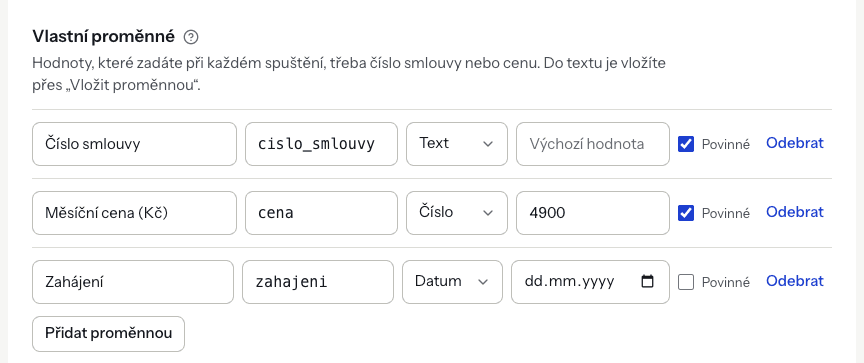
For values that change from round to round, create a custom variable under Custom variables.
- Click Add variable.
- Fill in the Variable label — this is how the field appears in the form when starting a round.
- Adjust the Key — the name you use in the text; for example the key
cislo_smlouvyis inserted as{{cislo_smlouvy}}. - Choose a Type: Text, Date or Number.
- Optionally enter a Default value and tick whether the variable is Required.
Rules:
- A key starts with a lowercase letter and contains only lowercase letters without diacritics, digits and underscores (up to 40 characters). Each key may appear only once in a template, and the key
datumis reserved. - When you rename a key, DOXIO updates it in all texts automatically.
- Number accepts a number with a decimal comma or point, e.g.
1500or12.5. Date is picked from a calendar. - If you leave a field empty when starting a round, the default value is used. A required variable without a default must be filled in.
- A template can have up to 30 custom variables, and a value can be up to 500 characters long.
How to put text with variables into the PDF#
- In the Layout preview, go to the page where the text belongs.
- Click Add text on page N. A new text block appears on the page.
- Type the text into the block. Insert a variable at the cursor by choosing it from Insert variable… (grouped into Client, Office and Custom variables), or type it by hand.
- Choose the font size next to it (7–16 pt).
- Drag the text box into place in the preview.
- Click Save layout.
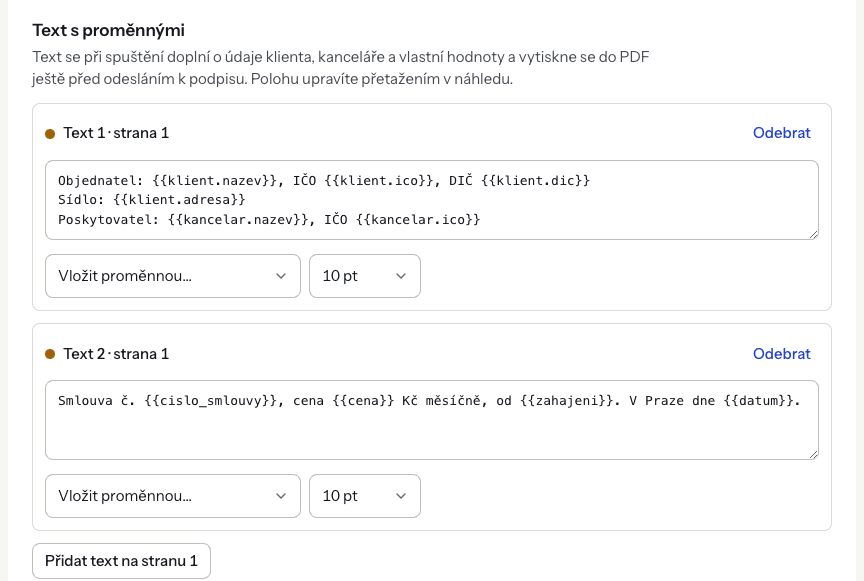
A text can span several lines and have up to 1,000 characters; a template can have up to 30 text blocks. Dates are printed according to the first recipient's language — 1. 11. 2026 in Czech, 2026-11-01 in English.
How to start a round from a template#
- Open Settings → Templates and click the template's name.
- Under Start a round, enter each signer's e-mail, name and language.
- Fill in the values of any prefilled fields the template has.
- If the template prints text with variables, complete Document details: choose the Client (required when the text includes client details) and the values of the custom variables. Required fields are marked with an asterisk.
- Click Show preview and check how the document will look with the details filled in.
- Optionally fill in Your reference (optional), such as a contract number from your system.
- Click Start round.
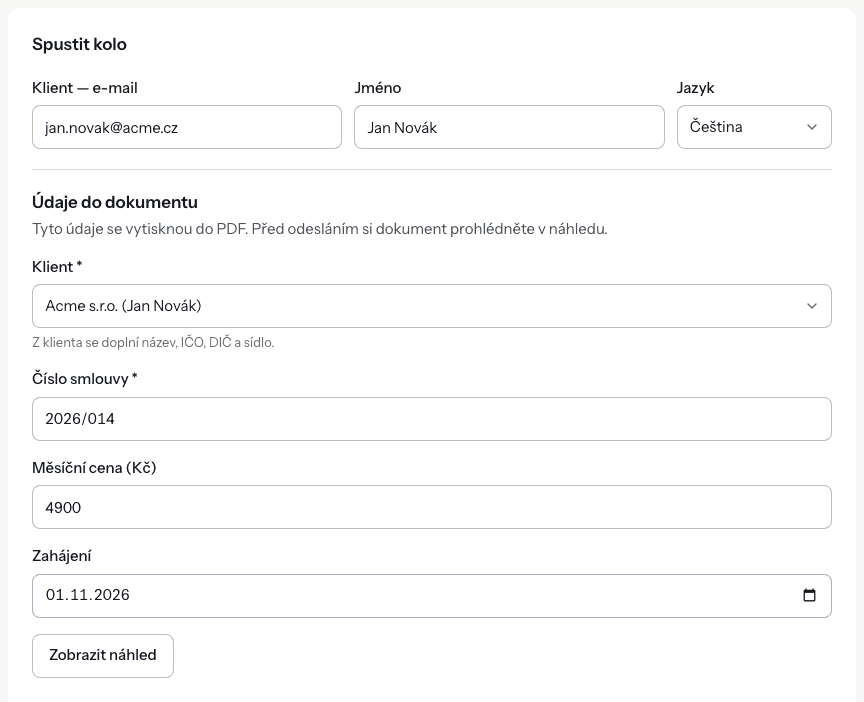
DOXIO creates a new document from the template, prints the texts into it and sends it to the signers. You'll then see Round started. and an Open document link. From there the document behaves like any other document out for signature.
If you change any detail after the preview, you'll see You changed the details since the preview. Show it again. and the round can only start after a new preview. When you choose a client, the document also shows up on that client's page.
A template with one signer can be sent to many recipients at once with Bulk send (from the Tým plan) — see Bulk send. Rounds can also be started through the API (from the Kancelář plan).
Automatic organization signature#
From the Kancelář plan, a template can sign for your organization automatically. When saving the template, tick The organization signs automatically. The signer you added with Add me then becomes the organization and, in every round, is signed with the signature image from Settings → Branding. In a one-after-another round the organization must sign first or last.
The automatic signature only works with a confirmed signing mandate, which you set up in Settings → Branding. Without it, the template shows a notice that automatic signing is paused, and the round can't be started.
Managing templates#
In Settings → Templates each template shows its signing order and the number of signers, fields and rounds started. You can Rename or Archive a template. An archived template can no longer start rounds; rounds already started are not affected.
On the template page, Recent rounds lists the rounds started, with a link to the document and its status: Open, Completed, Declined, Cancelled or Expired.
Troubleshooting#
"A text uses a variable that doesn't exist." There is a typo in a key, or the variable was deleted. Fix it, or add it as a custom variable.
"The key “datum” is reserved for the run date." Choose another key for your custom variable.
"A default value doesn't match its variable's type." Enter a number for a Number variable and a valid date for a Date variable.
"Choose a client." The template's text includes client details ({{klient.…}}), so choosing a client is required. If you have no clients yet, add one with Add a client.
"Enter a number, e.g. 1500 or 12.5." The value of a Number variable contains spaces, a currency or other characters. Enter just the number.
"A template with this name already exists." Choose a different name.
"Show the document preview before sending." A preview is required for templates with texts. Click Show preview.
"No signing mandate is active…" The template signs for the organization, and there is no confirmed signing mandate in Settings → Branding.