Client workspaces
A shared space with each client: a board with columns and labels, document requests, uploads, client contacts, templates and archiving.
Updated October 27, 2026
On this page
A client workspace is a shared space between your office and one client. Through the client portal the client uploads the documents you ask for and sees where each one stands. You label them on a board, move them between columns, comment on them and keep track of due dates. Workspaces work for bookkeeping, payroll, legal case files, property sales and employee onboarding.
Every uploaded file is also a regular document in Documents, so preview, download, folders, export and sending for signature all work for it.
How to create a workspace#
- In the top navigation, open Workspaces and click New workspace.
- In Client, pick a client from your directory or leave Not linked to a client. Choosing a client fills in the name.
- Adjust the Workspace name, for example “Novák Ltd” or “Vinohrady flat sale”.
- Under Board, choose a preset or one of your organization's templates (see Workspace templates).
- Click Create workspace. Then invite the client, see Inviting the client to the portal.
Presets set up a section, columns and, for some, the first requests to the client. The board is created in the language of the person who creates it:
| Preset | Columns | Requests included |
|---|---|---|
| General | New, In progress, Done | – |
| Accounting | New, To book, Booked, Needs clarification | – |
| Payroll | New, To process, Processed, Missing paperwork | – |
| Legal case file | New, To review, Waiting for client, Filed | power of attorney, ID document, case documents |
| Property sale | New, To check, Needs more, Ready | title deed, proof of acquisition, energy certificate, seller's ID |
| Employee onboarding | New, To check, Missing or unreadable, Complete | employment contract, ID document, employment record, medical report, bank account |
| Client onboarding | New, To check, Needs more, Done | commercial register extract, director's ID, service agreement |
| Blank board | New | – |
- Preset
- General
- Columns
- New, In progress, Done
- Requests included
- –
- Preset
- Accounting
- Columns
- New, To book, Booked, Needs clarification
- Requests included
- –
- Preset
- Payroll
- Columns
- New, To process, Processed, Missing paperwork
- Requests included
- –
- Preset
- Legal case file
- Columns
- New, To review, Waiting for client, Filed
- Requests included
- power of attorney, ID document, case documents
- Preset
- Property sale
- Columns
- New, To check, Needs more, Ready
- Requests included
- title deed, proof of acquisition, energy certificate, seller's ID
- Preset
- Employee onboarding
- Columns
- New, To check, Missing or unreadable, Complete
- Requests included
- employment contract, ID document, employment record, medical report, bank account
- Preset
- Client onboarding
- Columns
- New, To check, Needs more, Done
- Requests included
- commercial register extract, director's ID, service agreement
- Preset
- Blank board
- Columns
- New
- Requests included
- –
You can change all of it later on the workspace's Settings tab.
How many workspaces you can have#
Workspaces are included in every plan. The plan only limits the number of active workspaces; archived ones don't count. The Workspaces page shows your usage, for example “3 / 10 active workspaces”.
| Plan | Active workspaces |
|---|---|
| Start | 10 |
| Tým | 75 |
| Kancelář | 300 |
| Enterprise | unlimited |
- Plan
- Start
- Active workspaces
- 10
- Plan
- Tým
- Active workspaces
- 75
- Plan
- Kancelář
- Active workspaces
- 300
- Plan
- Enterprise
- Active workspaces
- unlimited
When you reach the limit, a notice replaces the New workspace button. Archive a workspace you no longer work in (see Archiving and deleting) or change your plan, see Subscription and plans. Moving to a lower plan never archives or deletes anything; you just can't create new workspaces.
The board#
A workspace has four tabs: Board, List, Requests and Settings. The board shows documents as cards in columns. A card shows the title, file, labels, who uploaded it and when, the due date and the number of comments.
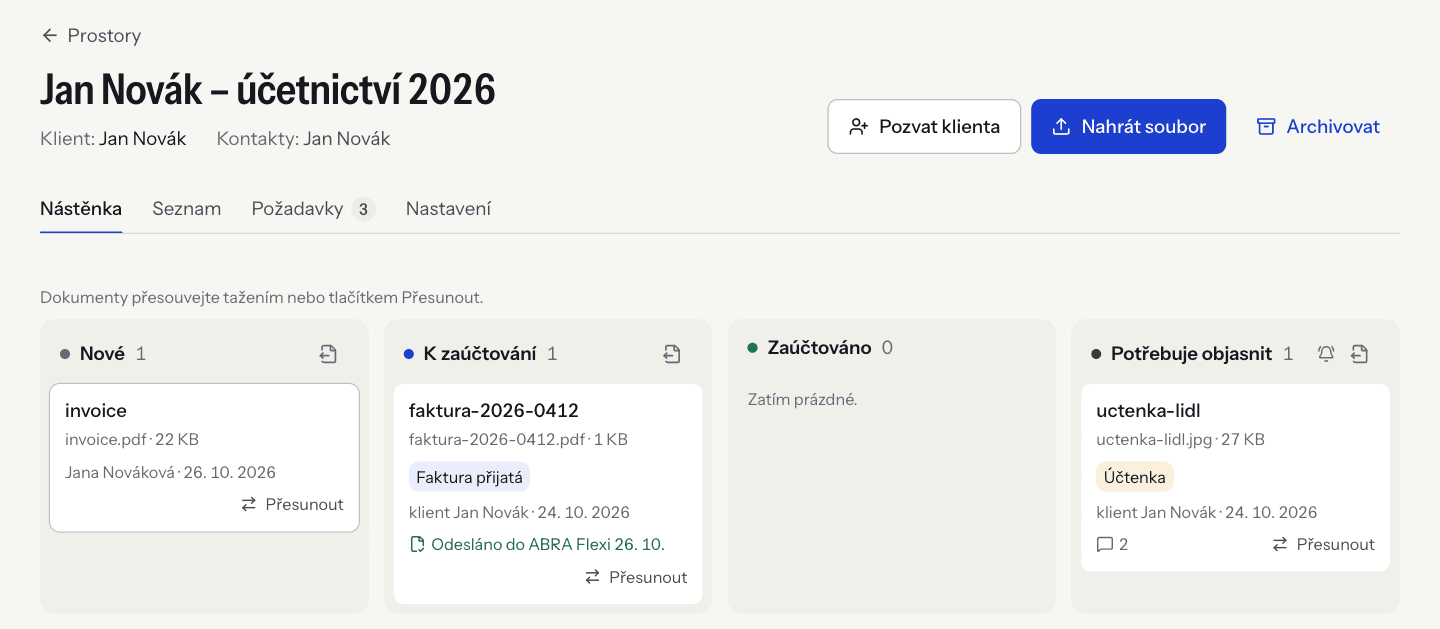
- The inbox column (usually New) receives files uploaded by the client. When empty it says “Files from the client arrive here.”
- A column with a bell icon notifies the client: when you move a card into it, the client gets an e-mail and sees the card under Needs your reply in the portal.
- The client sees the column name as their document's status, so name columns in a way the client understands too.
- When a document is past its due date, a link such as “1 document overdue” appears above the board and opens the list filtered to overdue documents.
How to move cards#
Drag a card into another column, or click Move and choose Move up, Move down or To …. The Move menu also works from the keyboard and on touch screens.
Sections#
A workspace can hold several boards side by side, such as Bookkeeping and Contracts. Each section has its own columns and its own inbox column. Files the client uploads without picking a request land in the inbox column of the first (default) section. To move a card to another section, pick a column of that section in the card's detail.
Manage sections in Settings → Sections: Add section (a new one starts with one column, New), rename, reorder and delete. Only an empty section can be deleted, and a workspace needs at least one. If accounting is turned on, a section offers Accounting documents: its cards open with Accounting data and invoice QR codes are pre-filled on upload, see Accounting settings.
Column settings#
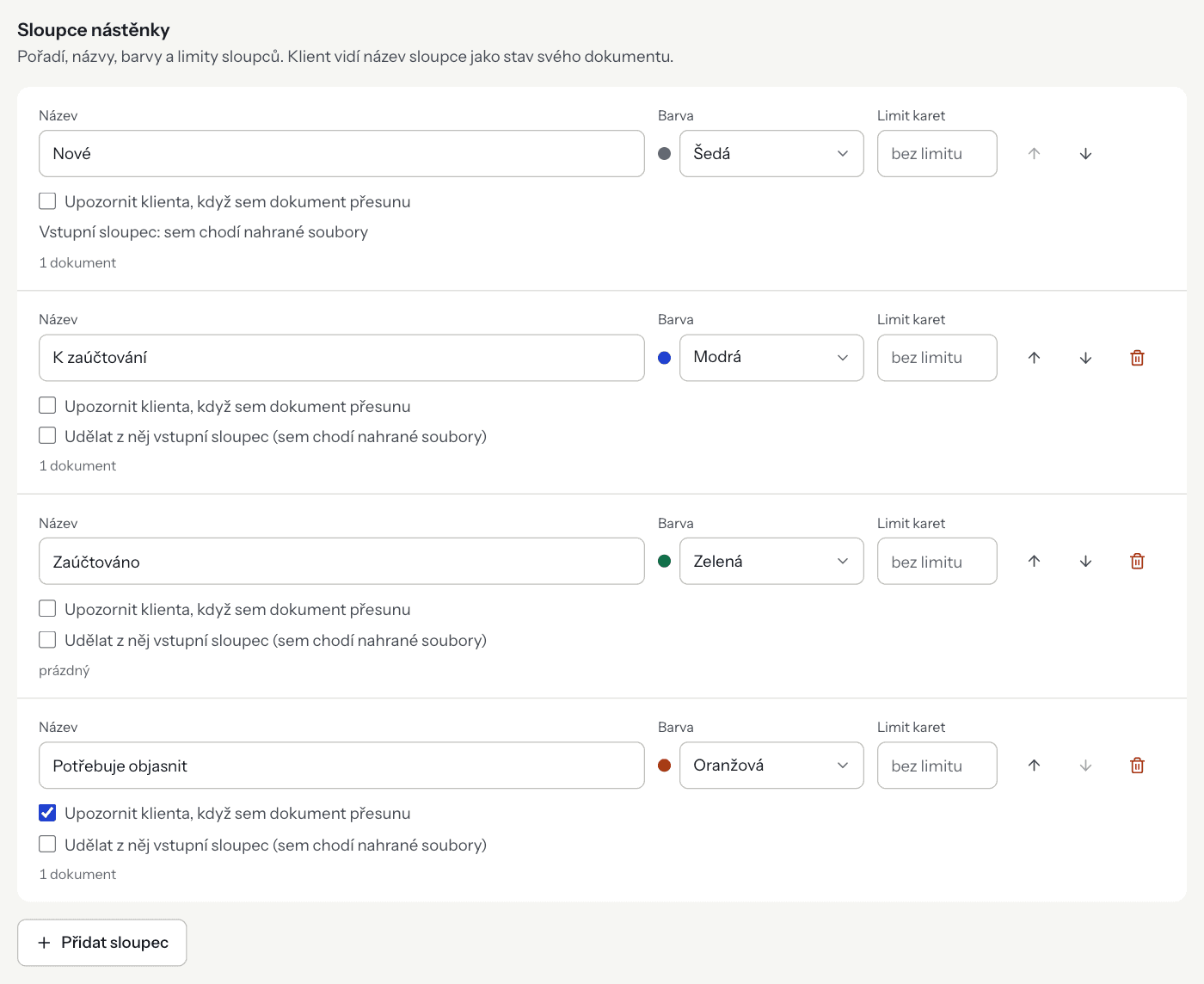
In Settings → Board columns you set for each column:
- Name and Colour (grey, blue, green, orange, red),
- Card limit – optional; when the column holds more cards, the board highlights it,
- Notify the client when I move a document here – the client gets an e-mail when a card is moved into this column,
- Make this the inbox column – uploaded files will land here.
Use the arrows to reorder and Add column to add more. The inbox column cannot be deleted; other columns only when empty.
Labels#
Labels (for example “Purchase invoice”, “Receipt”) sort documents across columns. They are shared by every workspace in your organization: create them in Settings → Labels (New label, colour, Add label) and a change applies everywhere. A deleted label disappears from every document; the documents themselves stay. A document can have at most 8 labels. The client does not see labels in the portal.
Document detail#
Click a card to open its detail panel. There you can:
- change the Column (also to another section),
- set or clear the Due date,
- assign Labels,
- Download, Open in Documents, Send for signature or Move to folder,
- Remove from board – the client no longer sees the document in the portal, but it stays in Documents with its history,
- write Comments.
A comment without Office only (the client won't see it) ticked is visible to the client in the portal, and the client gets an e-mail about it. With the box ticked it is an internal note for colleagues that the client never sees. A comment can be up to 2,000 characters.
Uploading files from the office#
The Upload file button in the workspace header uploads PDF, JPG or PNG files (PDFs up to 50 MB, photos up to 20 MB). Photos are converted to PDF. With accounting turned on, ISDOC e-invoices can be uploaded too. Files land in an inbox column: on the board in the inbox column of the section you are viewing, from the other tabs in the default section.
E-mails about client uploads go to the Responsible person set in Settings → Workspace. When nobody is set, the organization's owners and admins get them.
List and filters#
The List tab shows all documents of the workspace in a table (document, column, labels, uploaded by, date, due date, comments). You can filter by text (Search in title or file name), Section, Column, Label, who uploaded it (client, office or a specific person), From–To dates and Due (overdue, within 7 days, has a due date, no due date). Sort by newest, oldest, due date or title.
Requests to the client#
A request is one thing you need from the client, such as the September bank statement or a signed contract. The client sees requests in the portal under What we need from you and uploads files straight to each one.
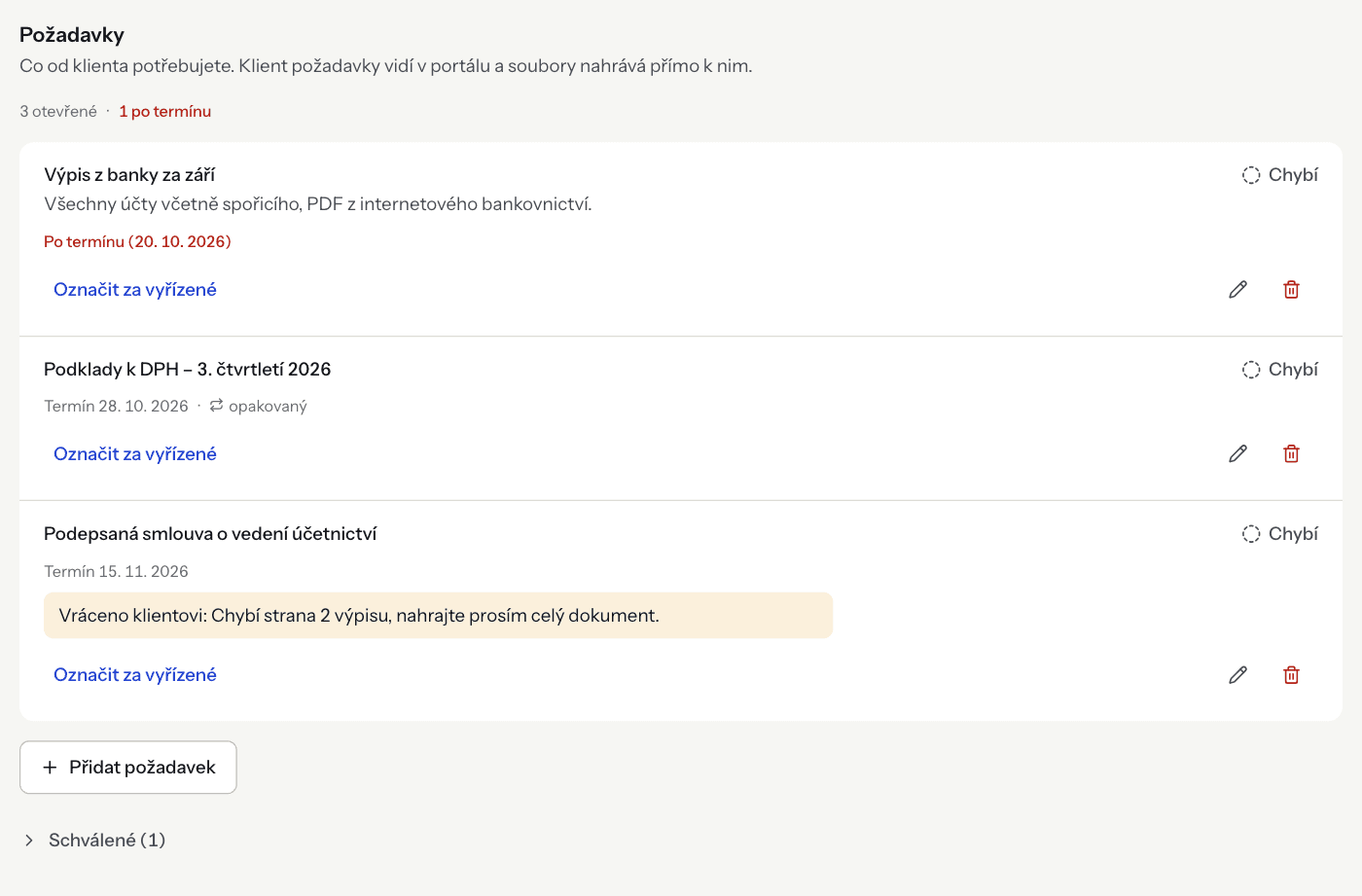
How to add a request:
- Open the Requests tab and click Add request.
- Fill in What you need and, if you like, Description (optional), which the client sees next to the request.
- Set a Due date (optional). After that day the request is highlighted.
- If the workspace has several sections, pick the Section where files uploaded to this request should land.
- Click Add. The client sees the request in the portal straight away.
A request has three states: Missing, Uploaded – awaiting review and Approved. When the client uploads a file to a request, you can:
- Approve – the request moves to Approved,
- Send back to client – write what the client should fix or add; the client gets an e-mail with your note and the request goes back to missing.
A missing request you have settled some other way (say the client brought a paper copy) can be closed with Mark as done. A deleted request disappears from the portal; files the client uploaded to it stay on the board.
For paperwork the client sends regularly (statements, invoices, payroll documents), set up recurring requests that appear by themselves every month, quarter or year. See Recurring requests.
Client contacts#
Contacts are the people at the client who can sign in to the portal, upload and reply to comments. Invite them with Invite client in the workspace header or under Settings → Client contacts. A workspace can have at most 20 contacts. The full procedure and what the client sees are described in Client portal.
Workspace templates#
Once a workspace is set up the way you like, save it as a template and create further workspaces from it.
- In the workspace, open Settings and scroll to Save as template.
- Enter a Template name and optionally a Description.
- If you like, tick Include the one-off checklist requests. Recurring requests are not saved in the template.
- Click Save template.
The template stores the sections, columns and the labels used in the workspace, not documents, contacts or comments. When creating a workspace, it is offered under Your organization's templates. Manage templates in Settings → Workspace templates: rename them, add a description or delete them (workspaces already created from them stay unchanged). An organization can have at most 50 templates.
Archiving and deleting#
Use Archive in the workspace header when you stop working with the client or the job is done. An archived workspace:
- is read-only and does not count towards your plan's limit,
- is closed to the client: contacts can't open it in the portal and get no e-mails or recurring requests,
- is kept in full (documents, board, comments).
Archived workspaces are on the Workspaces page under the Archived tab. Restore workspace makes it active again if your plan's limit allows. You can archive even when your subscription is inactive.
Only an empty workspace can be deleted (Settings → Delete workspace). Remove all documents from the board first (they stay in Documents). Deleting cannot be undone.
Who can edit workspaces#
Owners and admins can create, edit, archive and delete workspaces. The Member role can only view them: members see the board, list and requests, but not the Settings tab, and cannot change or upload anything. The one exception is internal notes on cards, with mentions of colleagues (see Tasks and mentions). With an inactive subscription, workspaces are read-only. See Team and roles.
FAQ#
- The client uploaded a file but I can't see it. Files not tied to a request land in the inbox column of the first section; files for a request land in the section chosen on the request. Check the section tabs above the board, or use List.
- A board can have at most 12 columns. One section can have at most 12 columns, and a workspace at most 8 sections.
- The inbox column receives client uploads, so it cannot be deleted. Make another column the inbox first.
- Move or remove the documents first. Only an empty column or section can be deleted.
- You are using every active workspace your plan allows. Archive a workspace you no longer use or change your plan.
- This workspace is archived, so it is read-only. Restore it first with Restore workspace.