Recurring requests
Set up once what you need from a client every month, quarter or year. DOXIO creates the requests by itself and reminds the client before and after the due date.
Updated October 27, 2026
On this page
A recurring request is a rule in a client workspace that makes DOXIO create a request for every period that ends — for example, on 1 November a request for the October bank statement. The client sees it in the portal, uploads files to it, and while the file is missing gets an e-mail reminder before the due date and a notice after it.
Use it for anything the client sends regularly: statements, invoices, payroll documents or VAT paperwork.
How a recurring request works#
Every request belongs to one period. The frequency decides when it is created and when it is due:
| How often | When the request is created | When it is due |
|---|---|---|
| Every month | the 1st of the following month | the chosen day of that month |
| Every quarter | the day after the quarter ends | the chosen day of the month after the quarter |
| Every year | 1 January | the chosen day and month of the following year |
- How often
- Every month
- When the request is created
- the 1st of the following month
- When it is due
- the chosen day of that month
- How often
- Every quarter
- When the request is created
- the day after the quarter ends
- When it is due
- the chosen day of the month after the quarter
- How often
- Every year
- When the request is created
- 1 January
- When it is due
- the chosen day and month of the following year
Example: an Every month rule due on the 10th creates the October 2026 request on 1 Nov 2026, due on 10 Nov 2026.
DOXIO appends the period to the title of every request it creates, e.g. “Bank statement and invoices – October 2026”, “VAT documents – Q3 2026” or “Tax return documents – 2026”. In the request list such a request carries the recurring label.
DOXIO creates new requests once a day. It does not back-fill periods whose due date had already passed before the rule was created.
How to add a recurring request#
- Open Workspaces and choose the client workspace.
- Switch to the Requests tab and scroll to Recurring requests.
- Click Add recurring request.
- In What you need, describe what you want from the client, e.g. “Bank statement and invoices”. The period is added to the title automatically.
- Optionally fill in Description (optional) — the client sees it next to the request in the portal.
- In How often, choose Every month, Every quarter or Every year.
- In Due – day, pick the due day (1st–28th). For a yearly request also pick Due – month.
- In Remind, choose how many days before the due date the client gets a reminder (On the due date up to 14 days before).
- If the workspace has more than one section, choose in Section where the files the client uploads to this request should land.
- Check the blue line below the form and click Add.
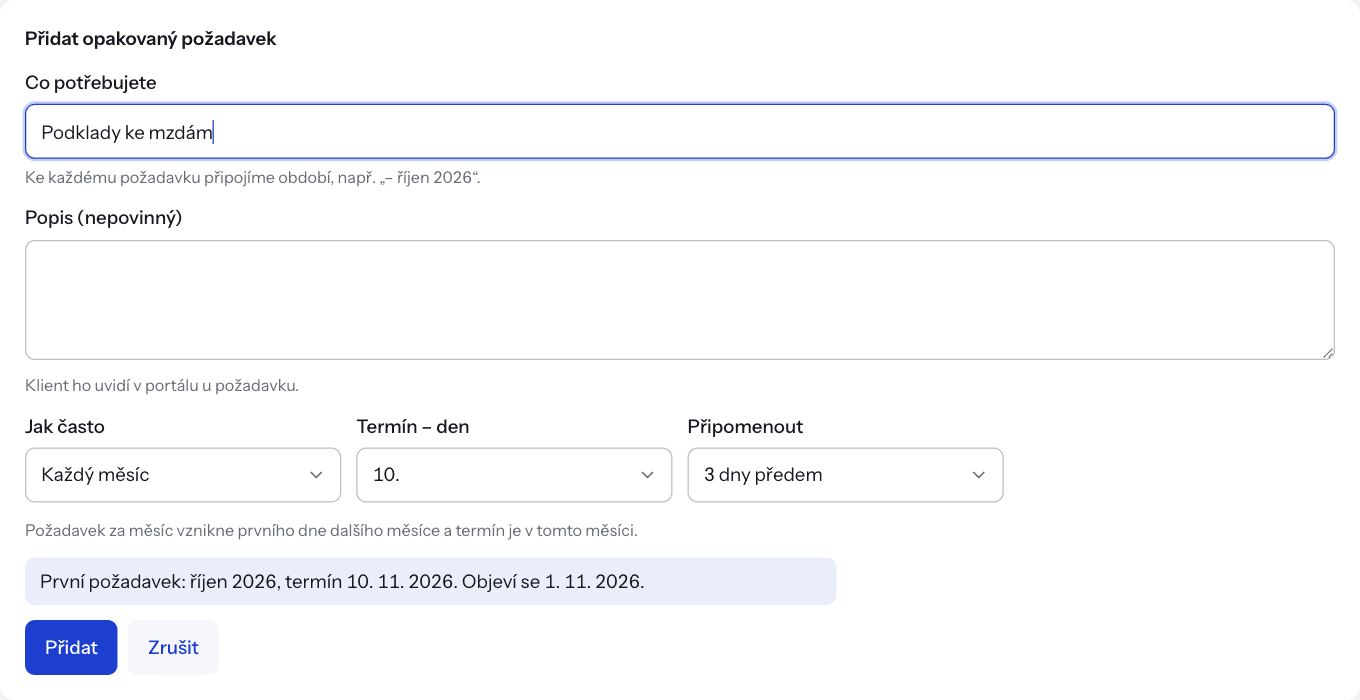
The blue line shows which period the first request covers and when it is due, e.g. “First request: October 2026, due 10 Nov 2026. It appears on 1 Nov 2026.” If the period has already ended and its due date has not passed yet, you see “It is created as soon as you save.” and the request is created right away.
Reminders to the client#
Reminders are e-mailed to every client contact with access to the workspace (see Client portal), each in their own language and with a link straight to the request in the portal.
- Reminder before the due date — sent once, the chosen number of days before the due date (or on the due date).
- Overdue notice — sent once, the day after the due date.
E-mails are only sent for requests in the Missing state. Once the client uploads a file or you approve the request, no more reminders go out. If you return a request to the client to complete it, it is Missing again.
Editing, pausing and deleting#
Your rules are listed under Recurring requests, each summarised in one line, e.g. “Every month by the 10th – Bank statement and invoices · for the past month · reminder 3 days before”.
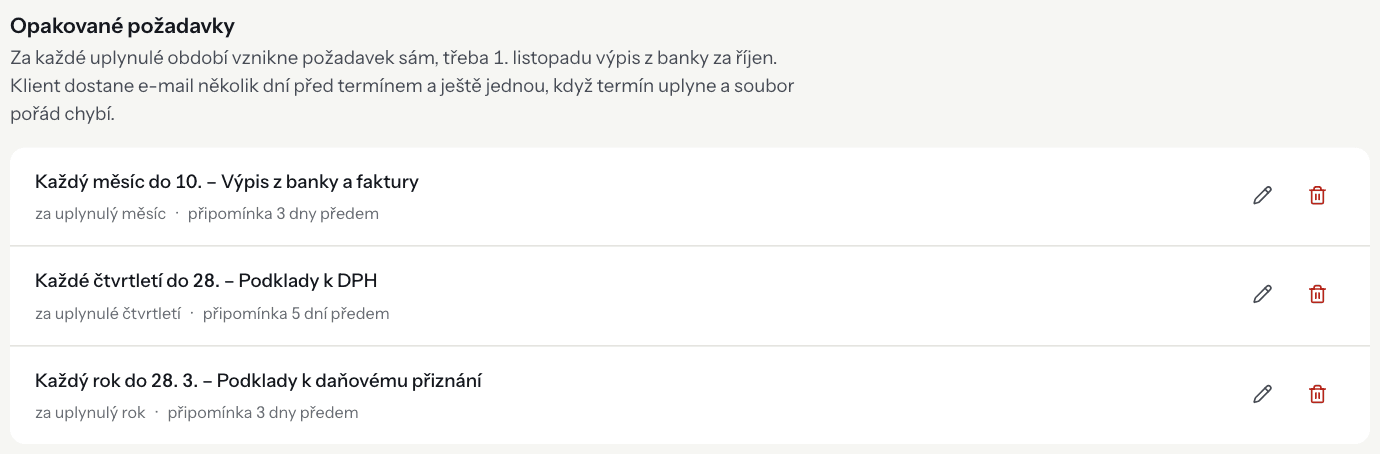
Edit: click the pencil icon, change the details and click Save. The change applies to periods whose request has not been created yet. Requests that already exist keep their title and due date.
Pause: while editing, untick Active – keep creating new requests and save. The rule is marked Paused: no new requests are created and the client gets no reminders, not even for requests that already exist. When you switch it back on, DOXIO does not create requests for the periods that passed in the meantime. It continues with the periods due after the day you switched it on.
Delete: click the bin icon and confirm. No new requests will be created; those already created stay, with their files.
Frequently asked questions#
The rule is saved, but no request has appeared. A request is created only after its period ends. The blue line in the form shows when it appears; for a monthly rule it is the 1st of the next month.
Reminders are not arriving. Check that the workspace has client contacts, the rule is not paused and the request is still Missing. In an archived workspace, or without an active subscription, DOXIO creates no new requests and sends no reminders.
You see “A workspace can have at most 20 recurring requests.” Delete a rule you no longer need.
One-off requests and the portal are covered in Client workspaces and Client portal.