Connecting ABRA Flexi
How to connect DOXIO to ABRA Flexi over its REST API, create an API user, turn on automatic sending of documents and fix connection errors.
Updated October 27, 2026
On this page
The direct connection sends documents from DOXIO straight to your company in ABRA Flexi through its REST API — no file download and import. Flexi gets a received or issued invoice or a cash document, the supplier or customer in its address book, and the document's PDF as an attachment.
What you need:
- the Přístup k API (API access) service active in Flexi,
- a separate API user without two-factor authentication,
- the server address and the company code.
ABRA documents Flexi in Czech; Flexi menu names below are given in Czech with an English explanation.
Activating API access in Flexi#
The API is not part of an ABRA Flexi licence by default. It is a paid service called Přístup k API (API access); once it is active you can create any number of API users. The price and the daily limit of API requests depend on your licence tier (Basic, Business, Premium) — see the ABRA Flexi price list.
- In the Flexi web app, open Nastavení → Licence a předplatné (Settings → Licence and subscription).
- Activate the API access service. This requires a user allowed to manage licences.
- If you cannot activate it yourself, ask ABRA's sales team.
ABRA describes the steps in API communication for non-IT users (Czech).
Creating the API user#
DOXIO signs in to Flexi with the name and password of an API-type user. A regular user with write access cannot sign in over the API, and an API user cannot sign in to the Flexi app. ABRA recommends one API user per integration — create one just for DOXIO.
In the Flexi web app:
- Open Nastavení → Přehled uživatelů (Settings → Users overview) and click Založit uživatele (Create user).
- Set Typ uživatele (User type) to API přístup (API access).
- Enter a unique login (e.g.
doxio) and a strong password. - Assign the company DOXIO should send documents to, and a role with the rights below.
- Save.
In the desktop app the path is Nástroje → Uživatelé ve firmě → Nový (Tools → Users in company → New); on the login details tab set the user type to REST-API.
Required rights#
The user's role in Flexi decides which records it may write. The API user needs full access (add new and change existing records) to:
| Flexi area | Why DOXIO needs it |
|---|---|
| Nákup → Přijaté faktury (Purchasing → Received invoices) | creating received invoices |
| Prodej → Vydané faktury (Sales → Issued invoices) | creating issued invoices |
| Peníze → Pokladna (Money → Cash) | cash receipts and cash expenses |
| Obchodní partneři → Adresy firem (Business partners → Company addresses, the address book) | finding or creating the supplier or customer |
- Flexi area
- Nákup → Přijaté faktury (Purchasing → Received invoices)
- Why DOXIO needs it
- creating received invoices
- Flexi area
- Prodej → Vydané faktury (Sales → Issued invoices)
- Why DOXIO needs it
- creating issued invoices
- Flexi area
- Peníze → Pokladna (Money → Cash)
- Why DOXIO needs it
- cash receipts and cash expenses
- Flexi area
- Obchodní partneři → Adresy firem (Business partners → Company addresses, the address book)
- Why DOXIO needs it
- finding or creating the supplier or customer
The user must also be able to read accounting periods and add attachments to documents. You can use one of Flexi's standard roles (for example Účetní, the accountant role meant for everyday accounting work) — in Nástroje → Uživatelské role (Tools → User roles) open it and check that it allows the areas above. To narrow the rights further, create your own role as a copy of a role with more rights and remove what is not needed (see User roles in ABRA's help, Czech).
Without two-factor authentication#
For a user with two-factor authentication (2FA), Flexi requires a one-time code on every request, so DOXIO cannot use it. Do not turn on 2FA for the API user. If it is already on, an administrator turns it off in Nástroje → Uživatelé ve firmě → the user → Vypnout dvoufázové ověření (Turn off two-factor authentication).
Your own Flexi account can keep 2FA — this only applies to the user you enter in DOXIO.
Server address and company code#
You will find both in the address of Flexi in your browser.
- Server address — in ABRA's cloud it looks like
https://yourcompany.flexibee.eu(Flexi cloud uses port 5434, which you may include:https://yourcompany.flexibee.eu:5434). For your own server, enter its public address including the port. - Company code — the identifier of the company database. In a REST API address it is the part after
/c/, in the web app the part after/flexi/.
https://yourcompany.flexibee.eu:5434/c/your_company/faktura-prijata
                                       ^^^^^^^^^^^^ company code
What DOXIO accepts in Server address:
- an address with or without
https://(yourcompany.flexibee.eubecomeshttps://yourcompany.flexibee.eu), - a full address copied from the browser — DOXIO keeps only the server and port and drops the rest of the path,
- secure connections only — an
http://address is rejected, - public servers only — addresses like
localhost,*.local,*.internalor private IP addresses cannot be used for security reasons.
Entering the connection in DOXIO#
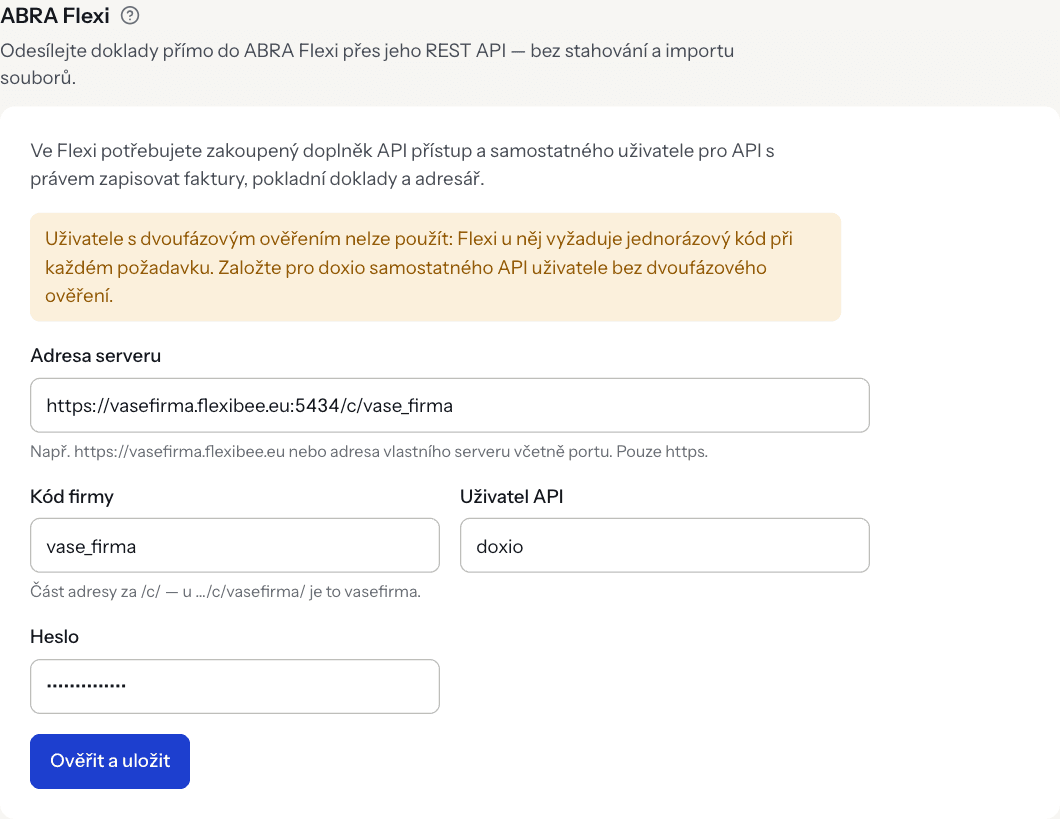
- Open Settings → Accounting and scroll to the ABRA Flexi section.
- Fill in Server address, Company code, API user and Password.
- Click Verify and save.
DOXIO first signs in to Flexi, opens the company, reads the accounting periods and signs out. The connection is saved only if all of that succeeds — non-working details are never stored. On success you will see “The ABRA Flexi connection is verified and saved.”
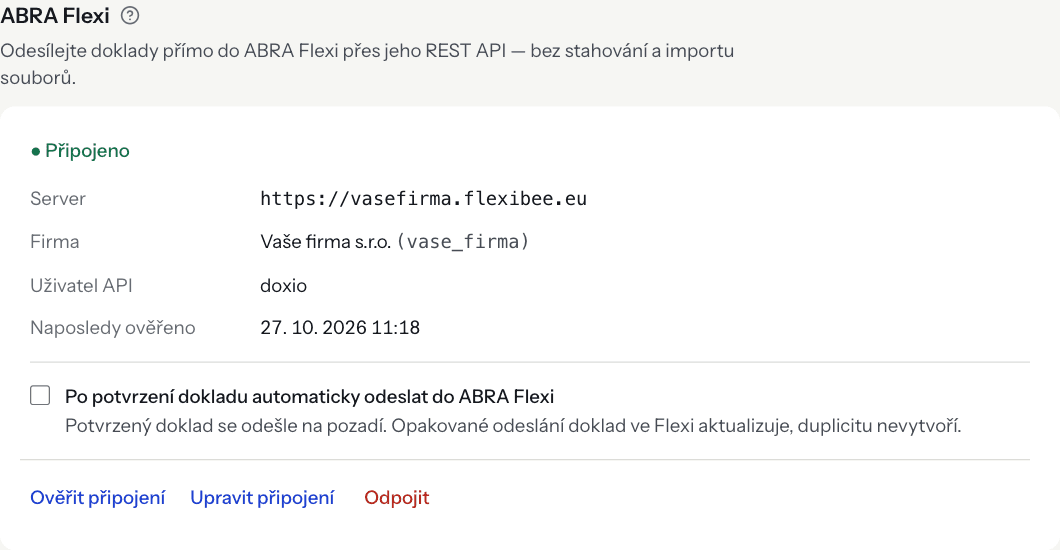
The password is stored encrypted and never shown again. After saving you see the status Connected, the server, the company (its Flexi name and code), the API user and the time it was last verified.
Editing and disconnecting#
- Edit connection opens the form again. You can leave Password empty to keep the stored one as long as you do not change the server address, the company code or the API user. If you change any of them, enter the password again (for security, the stored password is never sent to another server or for another user). Changes are verified again before saving.
- Disconnect deletes the stored credentials. Documents already in Flexi stay unchanged. Disconnecting is always possible, even after moving to a lower plan.
Members without the owner or admin role see the connection status read-only (see Team and roles).
Verifying the connection#
Verify connection repeats the check with the stored details: sign-in, opening the company and reading accounting periods. On success you will see, for example, “The connection works — company Sample s.r.o., accounting periods: 3.” and Last verified is updated.
If the check fails, the status changes to Connection error with the reason below it (see Troubleshooting). Verifying and saving can be run at most 10 times in 10 minutes.
Document defaults#
How a document is posted in Flexi is decided by the codes in Default posting in Settings → Accounting, set separately for each document kind (received invoice, issued invoice, cash receipt, cash expense). Each document can override them in its Accounting data panel. See Accounting settings for details.
| Field in DOXIO | Field in Flexi |
|---|---|
| Number series | document type (max. 20 characters) |
| Posting template | posting rule (předpis zaúčtování) |
| VAT classification | VAT classification (členění DPH) |
| Cost centre | cost centre (středisko) |
| Cash register | cash register (cash documents only) |
- Field in DOXIO
- Number series
- Field in Flexi
- document type (max. 20 characters)
- Field in DOXIO
- Posting template
- Field in Flexi
- posting rule (předpis zaúčtování)
- Field in DOXIO
- VAT classification
- Field in Flexi
- VAT classification (členění DPH)
- Field in DOXIO
- Cost centre
- Field in Flexi
- cost centre (středisko)
- Field in DOXIO
- Cash register
- Field in Flexi
- cash register (cash documents only)
Enter exactly the codes you use in Flexi. When Number series is empty, DOXIO uses the document types every new Flexi company has: FAKTURA for invoices and STANDARD for cash documents. The export dialog warns you about it.
Documents are created in Flexi without line items, with a VAT summary per rate. The supplier's document number is stored as the received number (číslo došlé), the number of your issued document as the internal number. The internal number of a received document is assigned by Flexi from the number series of the document type.
DOXIO looks up the supplier or customer in Flexi by company ID (IČO), then by VAT ID (DIČ). It never overwrites an existing address-book entry and creates a new one only when none is found.
Sending documents#
Send documents manually from the Export to accounting dialog (in a client workspace or in Documents):
- Select documents and click Export to accounting.
- Choose ABRA Flexi as the accounting software and Send directly to ABRA Flexi as the format. This option appears only with a saved connection.
- Check the warnings on the documents and click Send.
Up to 200 documents can be sent at once. Up to 5 documents show the result immediately; larger batches run in the background and the result appears in Export history. Unchecked (draft) documents are sent only when you tick the option to include drafts.
Automatic sending#
Below the saved connection is the option Send to ABRA Flexi automatically when a document is confirmed. When it is on, DOXIO sends the document in the background as soon as you click Confirm in the Accounting data panel.
A document is sent automatically only when:
- accounting data is turned on for the organization,
- the connection status is Connected — with a connection error, automatic sending waits (“Automatic sending waits for a working connection — verify it again.”),
- the document has everything the export needs.
Automatic sending can be turned on only on the Kancelář plan and higher; turning it off is always possible. A failed send never affects the confirmation — the error is only shown on the document.
Sending status on the document#
The Accounting data panel shows how sending went:
- In Flexi: PF0177/2026 — the document is in Flexi; the number links to the record in the Flexi web app (after you sign in to Flexi).
- Sending to ABRA Flexi… — sending is in progress, the status refreshes by itself.
- Sending to ABRA Flexi failed. — the reason and, where available, Flexi's own message are shown below. After fixing it, click Try again.
- The document cannot be sent to ABRA Flexi. — the document did not pass the checks (e.g. missing data or not confirmed). Complete the data and send it again.
Interrupted sending#
The result of every batch is in Export history per document. If sending a larger batch is interrupted (e.g. by a server restart), the detail of an export started more than 5 minutes ago that still has unsent documents shows a Continue sending button. It sends the remaining documents; those already sent are not sent again.
Troubleshooting#
Temporary errors (request limit, server error, timeout, network outage) are retried automatically a few times. Sign-in, rights and address errors stop the batch and switch the connection to Connection error.
| Message in DOXIO | Cause | Fix |
|---|---|---|
| ABRA Flexi rejected the login — check the user and password. | Wrong API user name or password, or the password was changed in Flexi. | Enter the current details in Edit connection. |
| The user has two-factor authentication on. Use a separate API user without it. | The user has 2FA. | Turn 2FA off for it or create an API user without it (steps). |
| The API user lacks the rights in Flexi, or the company has no active API Access add-on. | Missing role rights, the user has no access to the company, or the API access service is not active. | Check API activation and rights. |
| No company with this code exists on the ABRA Flexi server. | Typo in the company code. | Fix Company code using the Flexi address (how). |
| The record was not found in Flexi. | Flexi answered “not found”, e.g. the document was deleted in Flexi or the address does not lead to a Flexi server. | Check the server address and send the document again. |
| ABRA Flexi did not accept the document. | Flexi rejected the document; its explanation is shown below (e.g. an unknown document type or code). | Fix the code in Default posting or on the document according to Flexi's message and click Try again. |
| ABRA Flexi is temporarily limiting requests. Try again shortly. | Request limit reached. | Wait; if it keeps happening, check your licence's daily API limit. |
| The ABRA Flexi server reports an error. Try again later. | An error on Flexi's side. | Try again later. |
| ABRA Flexi did not answer in time. | The server did not respond within 30 seconds. | Try again later; for your own server check that it is reachable. |
| The ABRA Flexi server could not be reached. | Wrong address or port, or the server is not reachable from the internet. | Check the address and port; your own server must be reachable from the internet. |
| The server address points to a non-public network and cannot be used for security reasons. | The address resolves to a private IP address. | Use the server's public address. |
| ABRA Flexi returned an unexpected response. | Something other than the Flexi API answers at the address. | Make sure the address leads directly to the Flexi server. |
| The server redirects elsewhere. Enter the ABRA Flexi server address directly. | The server redirects to a different address (another server or port). | Enter the final server address Flexi redirects to. |
| The stored password cannot be read. Enter the connection again. | The stored password cannot be decrypted. | Enter the password again in Edit connection. |
| Enter the password. The stored password is not used when the server, company or user changes. | In Edit connection you changed the server address, company code or user and left Password empty. | Enter the API user's password again. |
| ABRA Flexi is not connected. Set up the connection in Settings → Accounting. | The connection was removed. | Enter the connection again. |
| The document file could not be loaded. | The document's PDF could not be loaded from storage. | Click Try again; if it persists, contact support. |
| The document has no accounting data or was deleted. | The accounting data is missing or the document was deleted meanwhile. | Fill in Accounting data and send again. |
| An unexpected error occurred while sending. | Another error, or the document failed even on the third attempt. | Try again; if it persists, contact support. |
| Your plan doesn't include the ABRA Flexi connection. | The organization is not on Kancelář or higher (e.g. after a downgrade). | Change the plan (Subscription). The stored connection and history are not deleted. |
- Message in DOXIO
- ABRA Flexi rejected the login — check the user and password.
- Cause
- Wrong API user name or password, or the password was changed in Flexi.
- Fix
- Enter the current details in Edit connection.
- Message in DOXIO
- The user has two-factor authentication on. Use a separate API user without it.
- Cause
- The user has 2FA.
- Fix
- Turn 2FA off for it or create an API user without it (steps).
- Message in DOXIO
- The API user lacks the rights in Flexi, or the company has no active API Access add-on.
- Cause
- Missing role rights, the user has no access to the company, or the API access service is not active.
- Fix
- Check API activation and rights.
- Message in DOXIO
- No company with this code exists on the ABRA Flexi server.
- Cause
- Typo in the company code.
- Fix
- Fix Company code using the Flexi address (how).
- Message in DOXIO
- The record was not found in Flexi.
- Cause
- Flexi answered “not found”, e.g. the document was deleted in Flexi or the address does not lead to a Flexi server.
- Fix
- Check the server address and send the document again.
- Message in DOXIO
- ABRA Flexi did not accept the document.
- Cause
- Flexi rejected the document; its explanation is shown below (e.g. an unknown document type or code).
- Fix
- Fix the code in Default posting or on the document according to Flexi's message and click Try again.
- Message in DOXIO
- ABRA Flexi is temporarily limiting requests. Try again shortly.
- Cause
- Request limit reached.
- Fix
- Wait; if it keeps happening, check your licence's daily API limit.
- Message in DOXIO
- The ABRA Flexi server reports an error. Try again later.
- Cause
- An error on Flexi's side.
- Fix
- Try again later.
- Message in DOXIO
- ABRA Flexi did not answer in time.
- Cause
- The server did not respond within 30 seconds.
- Fix
- Try again later; for your own server check that it is reachable.
- Message in DOXIO
- The ABRA Flexi server could not be reached.
- Cause
- Wrong address or port, or the server is not reachable from the internet.
- Fix
- Check the address and port; your own server must be reachable from the internet.
- Message in DOXIO
- The server address points to a non-public network and cannot be used for security reasons.
- Cause
- The address resolves to a private IP address.
- Fix
- Use the server's public address.
- Message in DOXIO
- ABRA Flexi returned an unexpected response.
- Cause
- Something other than the Flexi API answers at the address.
- Fix
- Make sure the address leads directly to the Flexi server.
- Message in DOXIO
- The server redirects elsewhere. Enter the ABRA Flexi server address directly.
- Cause
- The server redirects to a different address (another server or port).
- Fix
- Enter the final server address Flexi redirects to.
- Message in DOXIO
- The stored password cannot be read. Enter the connection again.
- Cause
- The stored password cannot be decrypted.
- Fix
- Enter the password again in Edit connection.
- Message in DOXIO
- Enter the password. The stored password is not used when the server, company or user changes.
- Cause
- In Edit connection you changed the server address, company code or user and left Password empty.
- Fix
- Enter the API user's password again.
- Message in DOXIO
- ABRA Flexi is not connected. Set up the connection in Settings → Accounting.
- Cause
- The connection was removed.
- Fix
- Enter the connection again.
- Message in DOXIO
- The document file could not be loaded.
- Cause
- The document's PDF could not be loaded from storage.
- Fix
- Click Try again; if it persists, contact support.
- Message in DOXIO
- The document has no accounting data or was deleted.
- Cause
- The accounting data is missing or the document was deleted meanwhile.
- Fix
- Fill in Accounting data and send again.
- Message in DOXIO
- An unexpected error occurred while sending.
- Cause
- Another error, or the document failed even on the third attempt.
- Fix
- Try again; if it persists, contact support.
- Message in DOXIO
- Your plan doesn't include the ABRA Flexi connection.
- Cause
- The organization is not on Kancelář or higher (e.g. after a downgrade).
- Fix
- Change the plan (Subscription). The stored connection and history are not deleted.
Other messages when entering the connection and sending:
| Message | Cause and fix |
|---|---|
| Enter a valid server address. | The address is empty or invalid. Copy it from the browser. |
| The server address must start with https://. | Use a secure (https://) address. |
| This server address cannot be used. | The address points to localhost, an internal domain, a private IP address or contains a user name and password. Enter the server's public address. |
| Check the entered details. | The user, the password (for a new connection) or the company code is missing, or the company code contains characters that are not allowed. |
| Too many attempts. Try again in a few minutes. | You exceeded 10 verifications in 10 minutes, or 20 manual sends in 10 minutes. |
| Credential encryption is not configured on the server. Contact DOXIO support. | A problem on DOXIO's side. Contact DOXIO support. |
| Accounting data is turned off for the organization. | Turn accounting data on in Settings → Accounting. |
| The subscription is not active. | Renew the subscription (Subscription). |
| You are not allowed to do this. | Only an owner or admin manages the connection and sends documents. |
| The push was not found or has already finished. | The export has finished meanwhile; reload the page. |
- Message
- Enter a valid server address.
- Cause and fix
- The address is empty or invalid. Copy it from the browser.
- Message
- The server address must start with https://.
- Cause and fix
- Use a secure (
https://) address.
- Message
- This server address cannot be used.
- Cause and fix
- The address points to localhost, an internal domain, a private IP address or contains a user name and password. Enter the server's public address.
- Message
- Check the entered details.
- Cause and fix
- The user, the password (for a new connection) or the company code is missing, or the company code contains characters that are not allowed.
- Message
- Too many attempts. Try again in a few minutes.
- Cause and fix
- You exceeded 10 verifications in 10 minutes, or 20 manual sends in 10 minutes.
- Message
- Credential encryption is not configured on the server. Contact DOXIO support.
- Cause and fix
- A problem on DOXIO's side. Contact DOXIO support.
- Message
- Accounting data is turned off for the organization.
- Cause and fix
- Turn accounting data on in Settings → Accounting.
- Message
- The subscription is not active.
- Cause and fix
- Renew the subscription (Subscription).
- Message
- You are not allowed to do this.
- Cause and fix
- Only an owner or admin manages the connection and sends documents.
- Message
- The push was not found or has already finished.
- Cause and fix
- The export has finished meanwhile; reload the page.