Importing documents into POHODA
How to export documents from DOXIO as POHODA XML and import them into POHODA step by step, with posting rule, VAT classification, credit notes, reverse charge and a link to the PDF.
Updated October 28, 2026
On this page
You can export documents that have accounting data filled in (received and issued invoices, cash receipts and cash expenses) from DOXIO as a ZIP. The ZIP contains a pohoda.xml file and the document PDFs. You then import it into POHODA (STORMWARE) with its standard XML import wizard. The documents are created with the posting rule (předkontace), VAT classification (členění DPH), number series and cost centre that you set in DOXIO.
How to export documents from DOXIO#
Click Export to accounting in one of these places:
- Client workspace → Board: the icon in a column header offers that column's cards. In a section marked Accounting documents it offers all cards; elsewhere only cards with accounting data.
- Client workspace → List: the button above the list offers the cards that match the current filter.
- Documents: the button in the header offers documents with accounting data in the open folder or filter.
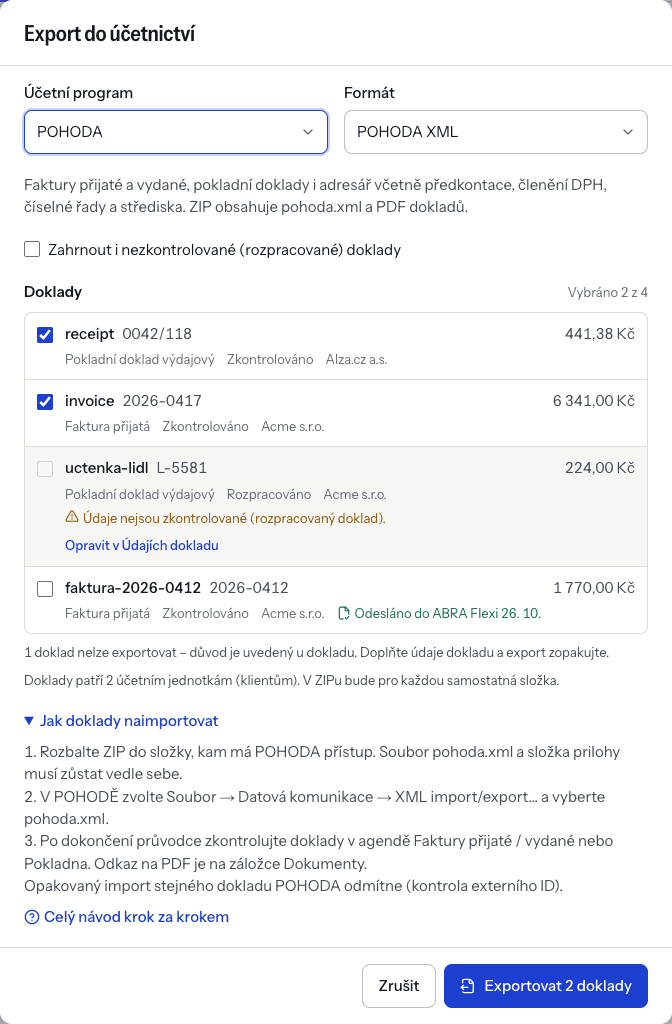
In the Export to accounting dialog:
- Under Accounting software, choose POHODA. The program set in Settings → Accounting is preselected.
- Under Format, keep POHODA XML.
- Go through the Documents list. DOXIO checks every document and shows the reason for each problem. A document with an error can't be selected. Typical errors are a missing tax point date (DUZP), a missing supplier VAT ID on a received invoice with VAT, or bases plus VAT that don't add up to the total. Fix the document with Fix in accounting data. Warnings don't stop the export.
- By default only checked (confirmed) documents are offered. To add drafts, tick Include unchecked (draft) documents.
- Click Export N documents. The ZIP download starts right away. If it doesn't, use Download the ZIP again.
One export can contain at most 200 documents. Documents that were already exported are not preselected. If you tick one anyway, you must confirm I understand, export again. POHODA would still refuse the same document a second time (see Troubleshooting).
Every export is listed in Settings → Accounting → Export history. You can download the ZIP again from there for 30 days. The export record itself is kept permanently.
What the ZIP contains#
The file has a name like doxio-pohoda-2026-10-27-1a2b3c4d.zip and contains:
| File | Content |
|---|---|
pohoda.xml | A POHODA XML data pack (Windows-1250 encoding) with all documents and addresses. |
prilohy/ | The document PDFs, named after the document number. If a signed PDF exists, that one is used. |
- File
pohoda.xml- Content
- A POHODA XML data pack (Windows-1250 encoding) with all documents and addresses.
- File
prilohy/- Content
- The document PDFs, named after the document number. If a signed PDF exists, that one is used.
pohoda.xml contains:
- Address book: partners with a company ID (IČO) or VAT ID (DIČ). POHODA only adds a partner when no company with the same IČO (or DIČ) is in the address book yet. Existing records are never overwritten.
- Received and issued invoices. A credit note (marked, or with a negative amount) is imported as a corrective document, see Credit notes.
- Cash documents (receipts and expenses) in the configured cash register.
Data on every document:
- issue date, tax point date, due date, variable symbol and partner;
- totals per VAT rate (0 %, 12 %, 21 %);
- for foreign currency, the exchange rate and the amount in that currency;
- posting rule, VAT classification, number series and cost centre.
Numbering:
- The supplier's invoice number is carried over as the original document number. POHODA assigns its own number from the number series.
- Issued invoices and cash receipts without a number series keep the DOXIO number.
- Link back to DOXIO: a link to the PDF on the document's Dokumenty tab, and the text "Importováno z DOXIO" with the document identifier in the internal note.
Documents with line items are exported with their items, the others only with the VAT summary. If you are not a VAT payer, documents are exported without VAT. Their VAT classification is "do not include in the VAT return" unless you set another one.
Credit notes#
A document marked as Corrective tax document (credit note), or with a negative total, is imported as a credit note into Faktury přijaté (received invoices) or Faktury vydané (issued invoices):
- The number series is Series / document type for credit notes from the accounting settings; when it is empty, the usual invoice series is used.
- The matching symbol (párový symbol) is the corrected invoice's variable symbol (when unknown, its number if it is numeric).
- The note (Poznámka) gets "Opravný daňový doklad k dokladu …" with the original invoice's number (and its issue date when known). The number comes from Number of the corrected document, otherwise from the linked document in DOXIO.
POHODA does not link the credit note to the original invoice in its own agenda. If you need that link in POHODA, add it there.
Reverse charge#
For a reverse-charge document DOXIO fills in the VAT classification by the reverse charge type. The default is PN for received documents and UDpdp for issued domestic ones; other issued documents keep the usual classification from the default posting. You can change the codes in the accounting settings, also separately per supply code. The lines of an issued invoice in this regime get the PDP flag. A line whose supply code has its own classification in the settings gets that classification itself.
How to import the documents into POHODA#
- Unpack the ZIP into a folder POHODA can reach, for example a shared drive. Keep
pohoda.xmland theprilohyfolder side by side, because the PDF links are relative. - In POHODA, open the accounting unit and accounting period the documents belong to.
- Choose Soubor / Datová komunikace / XML import/export….
- On the first page of the wizard, choose the processing type Soubor (file).
- In Vstupní složka nebo soubor (request), pick
pohoda.xmlfrom the unpacked folder. - You can leave Výstupní složka nebo soubor (response) empty. POHODA then saves the results to a
Responsesubfolder next to the input file. - We recommend ticking Kontrola duplicity dávek (batch duplicity check), so POHODA won't process the same export twice.
- On the next page, choose what happens to the input file. Leave the file and the PDF folder where they are so the PDF links keep working.
- Finish the wizard. The last page shows the result. Otevřít cílovou složku opens the detailed response.
The POHODA user needs the access right for XML communication (Přístupová práva agenda). The POHODA manual describes the wizard in detail.
Importing ISDOC instead#
If you only need the invoices, without posting, choose the ISDOC (e-invoice) format in DOXIO. Then in POHODA use Soubor / Datová komunikace / Import z ISDOC…. The ZIP holds one .isdoc file per invoice in the isdoc folder and the PDFs in prilohy. ISDOC carries no posting rule, number series or VAT classification, and it has no cash documents. You add those in POHODA by hand.
Checks after the import#
- Review the result on the last page of the wizard. You can find it later in the XML log agenda, where you can open both the source (request) and the result (response) file.
- Open Faktury přijaté (received invoices), Faktury vydané (issued invoices) and Pokladna (cash). For each new document, check the posting rule, VAT classification, number series, tax point date and amounts.
- On a document's Dokumenty tab, check that the PDF link opens the right file.
- Check the newly added companies in Adresář (address book).
- In DOXIO, exported documents carry an Exported to POHODA label with the date. The export detail in Export history shows which documents were skipped and why.
Troubleshooting#
POHODA returns a result with a numeric code for every document. The most common cases:
| Message / symptom | Cause and fix |
|---|---|
| Code 121: duplicate ExtID | The document is already in POHODA (each document from DOXIO carries an external identifier). Importing again creates nothing; make corrections directly in POHODA. |
| Code 109: a document with this number already exists | The issued invoice number from DOXIO is already used in POHODA. Set a number series in DOXIO so POHODA assigns the number. |
| Code 110: number series not found | The number series code from DOXIO doesn't exist in POHODA, or the user has no right to it. Fix the code in Accounting settings or on the document. |
| Code 128: closing and non-closing posting rules combined | Choose a different posting rule for the document. |
| Code 102 or 103: data closing or locked period | The document falls into a closed or locked period. Unlock the period or post the document differently. |
| Code 606: date outside the accounting period | A different accounting period is open. Open the right year and import again. |
| Code 623 (warning): closed VAT period | The document was created, but it falls into a VAT period that is already closed. Review it. |
| Code 113: POHODA can't process this request version | Update POHODA to the current version. |
| The PDF link doesn't work | The prilohy folder was moved or deleted. Unpack the ZIP again to the location you imported from. |
| A cash document landed in another cash register | No cash register was set in DOXIO, so POHODA used the importing user's default one. |
| A document is missing from the ZIP | It had an error during export and was skipped. The export detail in Export history shows why. |
| The ZIP can't be downloaded any more | Files are kept for 30 days. Export the documents again. |
- Message / symptom
- Code 121: duplicate ExtID
- Cause and fix
- The document is already in POHODA (each document from DOXIO carries an external identifier). Importing again creates nothing; make corrections directly in POHODA.
- Message / symptom
- Code 109: a document with this number already exists
- Cause and fix
- The issued invoice number from DOXIO is already used in POHODA. Set a number series in DOXIO so POHODA assigns the number.
- Message / symptom
- Code 110: number series not found
- Cause and fix
- The number series code from DOXIO doesn't exist in POHODA, or the user has no right to it. Fix the code in Accounting settings or on the document.
- Message / symptom
- Code 128: closing and non-closing posting rules combined
- Cause and fix
- Choose a different posting rule for the document.
- Message / symptom
- Code 102 or 103: data closing or locked period
- Cause and fix
- The document falls into a closed or locked period. Unlock the period or post the document differently.
- Message / symptom
- Code 606: date outside the accounting period
- Cause and fix
- A different accounting period is open. Open the right year and import again.
- Message / symptom
- Code 623 (warning): closed VAT period
- Cause and fix
- The document was created, but it falls into a VAT period that is already closed. Review it.
- Message / symptom
- Code 113: POHODA can't process this request version
- Cause and fix
- Update POHODA to the current version.
- Message / symptom
- The PDF link doesn't work
- Cause and fix
- The
prilohyfolder was moved or deleted. Unpack the ZIP again to the location you imported from.
- Message / symptom
- A cash document landed in another cash register
- Cause and fix
- No cash register was set in DOXIO, so POHODA used the importing user's default one.
- Message / symptom
- A document is missing from the ZIP
- Cause and fix
- It had an error during export and was skipped. The export detail in Export history shows why.
- Message / symptom
- The ZIP can't be downloaded any more
- Cause and fix
- Files are kept for 30 days. Export the documents again.
The codes come from POHODA's list of XML processing errors. If you use Money S3, see Importing into Money S3.