Turning on accounting and setting up posting
How to turn on accounting data, set the default posting template, VAT classification and number series, enter credit notes and reverse charge, fill in and confirm document data and export it to your accounting software.
Updated October 28, 2026
On this page
The accounting part of DOXIO adds Accounting data to every document: document type, dates, counterparty, VAT breakdown and posting codes. From filled-in, confirmed documents you then prepare an export for POHODA, Money S3, ABRA Flexi, or any other program via ISDOC or CSV. Accounting is off by default and does not appear anywhere in the app until you turn it on.
How to turn accounting on#
Owners and admins can change the settings; other members see them read-only. Accounting is available on every plan.
- Open Settings → Accounting.
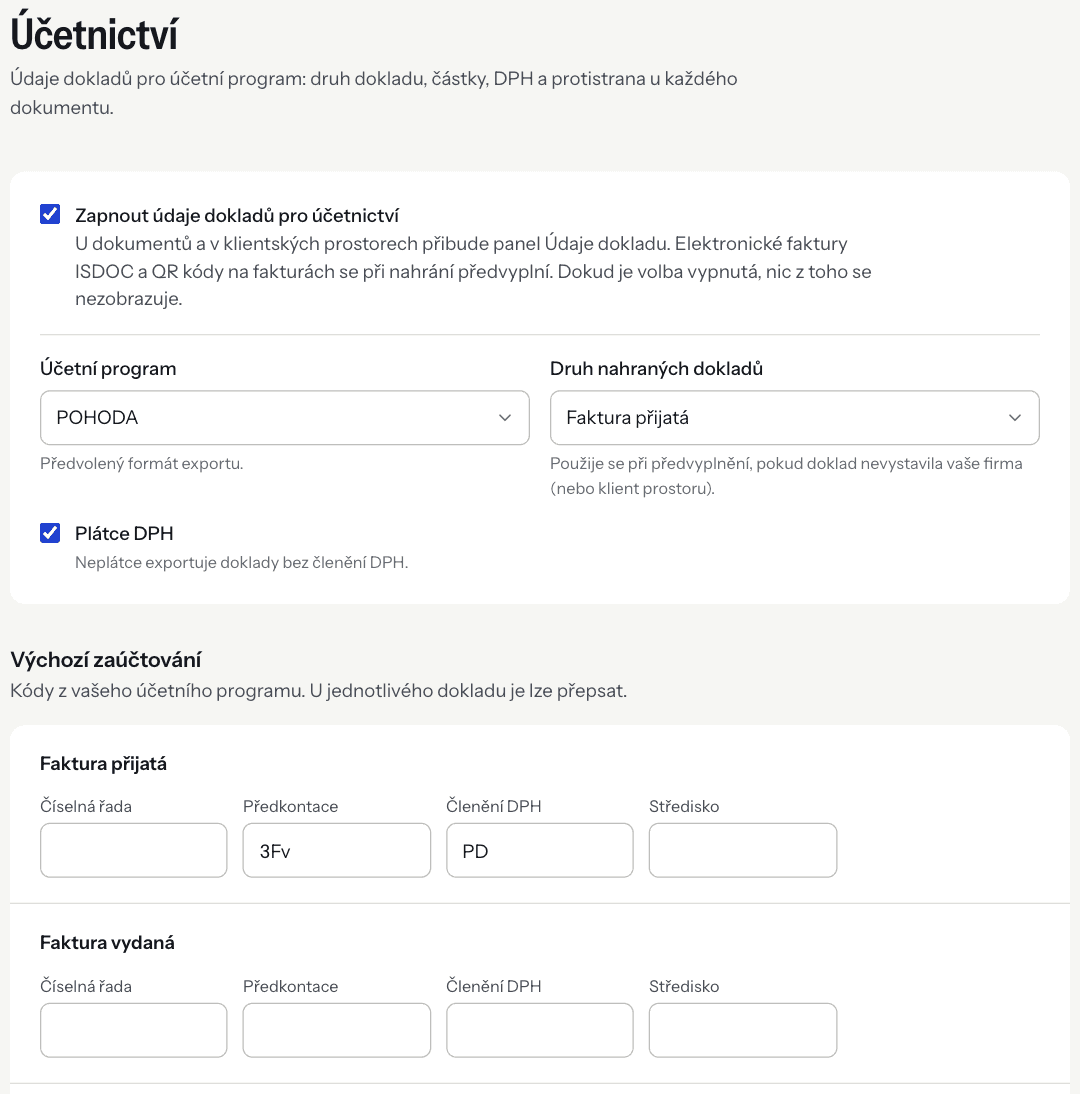
- Tick Turn on accounting data for documents.
- Fill in the basic options (described below) and click Save settings.
Once it is on, documents get an Accounting data tab, workspace sections can be marked as Accounting documents, and Export to accounting buttons appear. If you turn the option off again, everything accounting-related disappears from the app; the stored data is not deleted.
Setup guide#
Instead of filling in the form by hand, you can use the guide: on Settings → Accounting, click Start the guide in the Set up accounting with the guide box (an unfinished guide continues with Continue the guide). The guide takes you through Switch on, Accounting software, Default coding (optional), Test send (ABRA Flexi only, optional) and Where to use it; at the end click Finish. Owners and admins can run it.
Basic options#
- Accounting software – the program whose format is preselected in the export dialog (POHODA, Money S3, ABRA Flexi, or Other / not chosen yet).
- Type of uploaded documents – used for automatic pre-filling when the document was not issued by your company (or the workspace's client). Typically Received invoice.
- VAT payer – a non-payer exports documents without VAT classification.
Default posting#
Under Default posting you enter codes from your accounting software separately for each document type: Received invoice, Issued invoice, Cash receipt and Cash expense. DOXIO does not check the codes against your program – copy them exactly as they exist there, otherwise the program rejects them on import.
Each code can be overridden on an individual document in the Posting section (see Accounting data). An empty field on a document uses the default from the settings.
Posting template (předkontace)#
The Posting template decides which accounts the document is posted to (for example the template you use for material purchases). POHODA and Money S3 receive it as the document's předkontace, ABRA Flexi as its posting rule (předpis zaúčtování). Money S3 accepts at most 10 characters.
VAT classification (členění DPH)#
VAT classification determines how the document appears in the VAT return and control statement in your accounting software. Enter the classification code from your program (for example the one you use for domestic received supplies). A non-payer exports documents without VAT classification. Money S3 accepts at most 10 characters.
Number series#
The Number series tells the program which document series to file the document under. ABRA Flexi uses it as the document type (at most 20 characters); when it is missing, Flexi uses the default type FAKTURA or STANDARD. Money S3 accepts a number series of at most 5 characters.
Series / document type for credit notes#
Received and issued invoices also have a Series / document type for credit notes field. It replaces the usual number series for documents marked as a credit note (see Credit notes). For POHODA and Money S3 enter the number series of corrective documents, for ABRA Flexi the document type you use for credit notes. An empty field means a credit note gets the usual invoice series. For ABRA Flexi the export check warns about an empty field, because the credit note would be imported as a regular invoice.
Cost centre and cash register#
The Cost centre is optional (at most 10 characters in Money S3). The Cash register is set only for cash documents. It is required for Money S3 and ABRA Flexi – without it a cash document is not exported. POHODA falls back to the user's default cash register.
Accounting data#
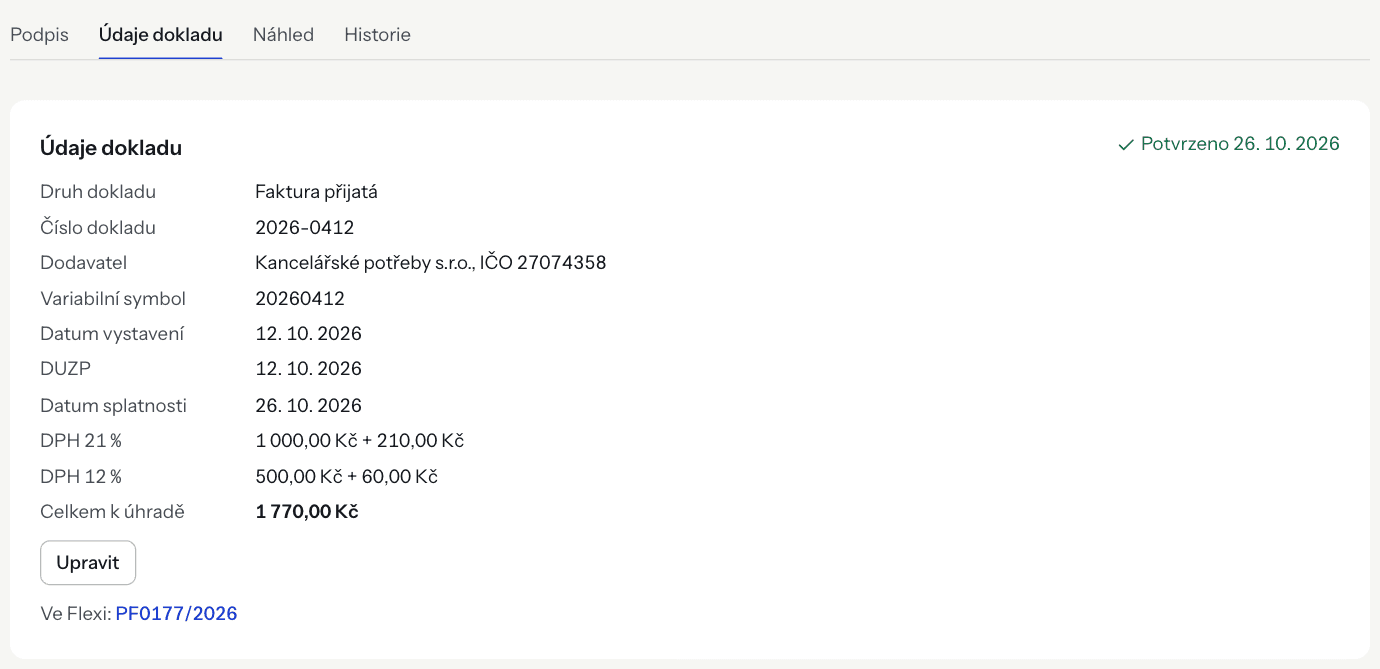
You find the accounting data on the Accounting data tab of the document detail and on the document card in a client workspace. A document without data offers Add accounting data.
The form contains:
- Document type, Document number, Variable symbol, Issue date, Tax point date and, for invoices, Due date,
- the Supplier (for incoming documents) or Customer (for issued ones) – after entering the company ID, the name, VAT ID and address are filled in from ARES,
- the VAT breakdown by the 21 %, 12 % and 0 % rates – VAT is calculated from the base until you overwrite it,
- Total due, Rounding, Currency and, for a foreign currency, Rate (CZK per 1 …),
- the collapsible Posting section with overrides of the default codes, and a Note,
- the Reverse charge and Corrective tax document (credit note) options – when ticked, they add the fields described in Credit notes and Reverse charge.
Below the VAT breakdown DOXIO shows the sum of base and VAT as you type. When it differs from the total by less than CZK 1, it offers Use as rounding.
Every field shows where its value came from: manual, ISDOC, QR payment, QR invoice, ARES or AI.
Automatic pre-filling#
Accounting data can fill itself in on upload:
- ISDOC e-invoice –
.isdocand.isdocxfiles and PDFs with an embedded ISDOC. The original ISDOC stays stored with the document. - Invoice QR code (QR payment, QR invoice) – for documents uploaded outside client workspaces or into an Accounting documents section.
- AI extraction – an optional paid module, see AI document extraction.
Pre-filling only creates a draft and never overwrites data the document already has. The document type is decided by company ID / VAT ID: if your company (in a client workspace, the client) issued the document, it is an issued invoice; otherwise Type of uploaded documents applies.
Credit notes#
Mark a corrective tax document (credit note) with Corrective tax document (credit note) in the accounting data. DOXIO treats a document with a negative total as a credit note even without the mark, but a check asks you to mark it. Cash documents have no credit notes.
An invoice then gets two more fields:
- Number of the corrected document – the number of the invoice the credit note corrects, as printed on the document. The Czech VAT Act (§ 45) requires a corrective document to state the number of the corrected document, so a check warns when it is missing.
- Original document in DOXIO – an optional link to an invoice you have already uploaded. Type part of the document's title or number and pick it from the list. When the number of the corrected document is empty, it is filled in from the picked document. Remove link removes the link; click the linked document's title to open it.
How a credit note reaches each program:
- POHODA – as a received or issued corrective document (credit note) with the credit note series. The matching symbol (párový symbol) is the original invoice's variable symbol (otherwise its number, when it is numeric) and the text "Opravný daňový doklad k dokladu …" is in the note.
- Money S3 – as an invoice with the credit note flag and the credit note series. It gets the matching symbol and the original invoice's tax point date (when known); the text with the original document's number is in the note.
- ABRA Flexi – with the document type from Series / document type for credit notes and the text about the original document in the note. Flexi has no field for the corrected document's number, so you find it in the note.
- ISDOC – as a corrective tax document (document type 2) with a reference to the original document.
Set the credit note series in Series / document type for credit notes.
Reverse charge#
When you tick Reverse charge on a document (or a line has the Reverse charge rate), a Reverse charge type field appears:
- Domestic – construction, gold, waste… (§ 92a) – the Czech domestic reverse charge,
- Goods from the EU (on issued documents Goods to the EU),
- Services from the EU (on issued documents Services to the EU),
- Services from outside the EU (on issued documents Services outside the EU).
For the domestic type also choose the Supply code (kód předmětu plnění). It is the code from the VAT control statement (sections A.1 and B.1), for example 4 – Construction and assembly work or 5 – Waste and scrap. The list follows the Financial Administration's instructions for the control statement. When a document contains supplies with different codes, set the code on the reverse-charge lines: in Invoice lines each such line has a Supply code field, defaulting to Same as the document. The document check warns about a missing type or code.
VAT classification for reverse charge#
The export picks the VAT classification (členění DPH) by the reverse charge type (and, for domestic, by the supply code). DOXIO's defaults are the usual codes of each program:
| Type | POHODA (received / issued) | Money S3 (received / issued) | ABRA Flexi (received / issued) |
|---|---|---|---|
| Domestic | PN / UDpdp | 19Ř00P / 19Ř25 | 10-11, 43-44 / 25 |
| Goods within the EU | PN / – | 19Ř00P / – | 03-04, 43-44 / 20 |
| Services within the EU | PN / – | 19Ř00P / – | 05-06, 43-44 / 21 |
| Services outside the EU | PN / – | 19Ř00P / – | 12-13, 43-44 / 26 |
- Type
- Domestic
- POHODA (received / issued)
- PN / UDpdp
- Money S3 (received / issued)
- 19Ř00P / 19Ř25
- ABRA Flexi (received / issued)
- 10-11, 43-44 / 25
- Type
- Goods within the EU
- POHODA (received / issued)
- PN / –
- Money S3 (received / issued)
- 19Ř00P / –
- ABRA Flexi (received / issued)
- 03-04, 43-44 / 20
- Type
- Services within the EU
- POHODA (received / issued)
- PN / –
- Money S3 (received / issued)
- 19Ř00P / –
- ABRA Flexi (received / issued)
- 05-06, 43-44 / 21
- Type
- Services outside the EU
- POHODA (received / issued)
- PN / –
- Money S3 (received / issued)
- 19Ř00P / –
- ABRA Flexi (received / issued)
- 12-13, 43-44 / 26
Change the codes in Settings → Accounting under Reverse charge – VAT classification:
- Choose the Program (your accounting software is preselected).
- Overwrite the code in the type's row and the Received documents column (received invoice, cash expense) or Issued documents column (issued invoice, cash receipt). A field with the default value shows "default" below it, your own value shows "custom" and a Reset to default button.
- In the collapsible By supply code part you can set a different classification for a specific code (e.g. your own classification for code 4 in POHODA). An empty field uses the Domestic row.
- Click Save settings.
An empty field means the usual VAT classification from the default posting is used. A classification set directly on the document under Posting takes precedence over this setting. For ABRA Flexi enter the code without the code: prefix and separate several codes with commas. ABRA Flexi also receives the control statement row and, on each line, the supply code. POHODA marks the lines of an issued invoice as reverse charge (PDP).
How to confirm a document#
Accounting data is either a Draft or Confirmed. Confirming means you have checked the data.
- Go through all fields, especially the pre-filled ones.
- Click Confirm. To continue later, Save draft is enough.
- A confirmed document is read-only. If you need to correct something, click Edit – the document goes back to draft.
To confirm, the issue date, total, counterparty (name or company ID) and, for a foreign currency, the exchange rate must be filled in. Only owners and admins edit and confirm accounting data. A draft can be deleted with Remove data.
How to export documents#
Export to accounting software is available from the Tým (Team) plan (see Subscription and plans). Owners and admins can run it.
- Click Export to accounting – in a client workspace in the header of a board column or above the list, or in Documents.
- In the dialog choose the Accounting software and Format: POHODA XML, Money S3 XML, ABRA Flexi XML/JSON, ISDOC (e-invoice) or CSV (spreadsheet).
- DOXIO checks every document. With an error (e.g. missing tax point date, totals don't add up) the document is not exported; with a warning it is. Fix in accounting data takes you straight to the document.
- Click Export and download the ZIP with the import file and the document PDFs.
By default only confirmed documents are exported; add drafts with Include unchecked (draft) documents. At most 200 documents can be exported at once. If the documents belong to different clients, each client gets its own folder in the ZIP.
Exported documents get a label with the program and date, e.g. "Exported to POHODA 26 Oct". An already exported document is not preselected again; if you tick it anyway, you must confirm I understand, export again.
All runs are listed in Settings → Accounting → Export history. The ZIP can be downloaded again for 30 days; the history entry stays.
How to import into a specific program: Importing into POHODA, Importing into Money S3. From the Kancelář (Office) plan, ABRA Flexi can be connected directly – see Connecting ABRA Flexi.
Troubleshooting#
- "To confirm, fill in: …" – fill in the listed fields (issue date, total, counterparty or exchange rate) and confirm again.
- "The data is already confirmed. Choose Edit to change it." – first reopen the document with Edit.
- "VAT does not match the base, expected …" – check the rate and VAT amount. The tolerance is CZK 1 per rate because of per-item rounding.
- "Your plan doesn't include accounting exports." – export requires the Tým (Team) plan or higher.
- "No cash register is set (Settings → Accounting)." – fill in the Cash register for cash documents under default posting.
- I don't see Accounting data or export – accounting is off; turn it on in Settings → Accounting.