Client portal
How to invite a client to the portal, how they sign in without a password and what they see there: requests, uploads from computer or phone, and messages with the office.
Updated October 27, 2026
On this page
The client portal is the page your client uses to work with their client workspace. They need no account or password: they sign in with a one-time code from an e-mail. In the portal they see what you need from them, upload documents (including photos taken with a phone), follow the status of each one and answer your questions.
Inviting the client to the portal#
Only people you invite as contacts of a workspace can open it in the portal. Owners and admins of the organization can invite.
- Open the client's workspace in Workspaces.
- In the header, click Invite client (the same button is under Settings → Client contacts).
- Enter the contact person's E-mail.
- Optionally enter a Name. It is shown next to their uploads and comments.
- Choose the Language of e-mails and the portal (Czech or English).
- Click Send invitation.
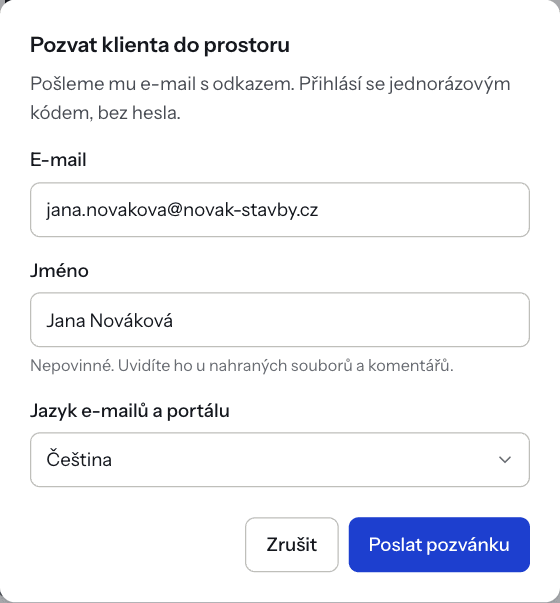
The client receives an e-mail with the subject “Your office invited you to a shared workspace” and an Open the workspace button. The e-mail also explains that no password is needed and they sign in with a one-time code.
- You can invite several people from the client to one workspace (for example the director and their in-house accountant), up to 20 contacts.
- If the invitation cannot be sent, the contact is still added and a message asks you to use Resend invitation.
- You can invite the same e-mail address to several workspaces. After signing in, the client picks from a list of their workspaces.
- You cannot invite anyone to an archived workspace.
Managing contacts#
Invited contacts are listed under Settings → Client contacts, each with a status and the date of the invitation or last sign-in. (The screenshots in this article show the Czech interface.)

| Status | Meaning |
|---|---|
| Invited | The contact is invited but has not signed in yet. |
| Active | The contact has signed in to the portal at least once. |
| No access | You removed the contact. |
- Status
- Invited
- Meaning
- The contact is invited but has not signed in yet.
- Status
- Active
- Meaning
- The contact has signed in to the portal at least once.
- Status
- No access
- Meaning
- You removed the contact.
- Resend invitation sends the same e-mail again, for example when the invitation ended up in spam.
- Remove ends portal access immediately. Files and comments the contact added stay on the board. You can invite a removed contact again later.
How the client signs in#
- The client clicks Open the workspace in the invitation.
- On the Sign in to your client workspace page they enter the e-mail address the invitation was sent to and click Send code.
- They type the code from the e-mail into the 6-digit code field and sign in.
The code is valid for 10 minutes and works only once. After a short countdown the client can request another with Send a new code, at most 5 codes per hour. A sign-in lasts 8 hours; after that the client enters a new code. The client can only open the workspaces the office invited them to; if there are several, they choose under Your workspaces and switch with the Other workspaces link.
The client can switch the portal language at any time with the EN / CS switch in the header.
What the client sees#
From the top, the workspace page has:
- the workspace name and “Managed by office name”,
- What we need from you – open requests (only shown when there are any),
- Upload documents – the upload area,
- Needs your reply – documents in columns where you turned on client notifications,
- Documents (or Other documents) – every other document on the workspace board.
For each document the client sees the title, the status (the name of the column the document is in), the date and who uploaded it. They can View or Download it.
The client does not see labels, internal notes marked Office only, documents removed from the board or anything from other workspaces. They cannot move or delete cards.
Requests in the portal#
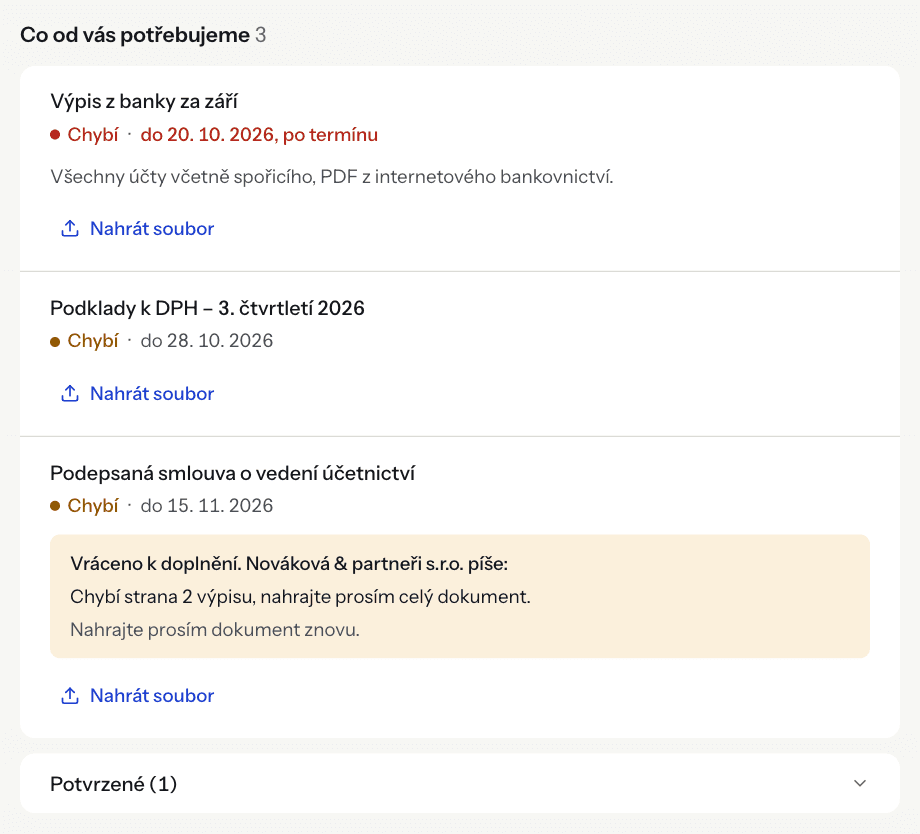
Under What we need from you the client sees each request with its description, due date and status:
| Status in the portal | Meaning |
|---|---|
| Missing | Nothing uploaded yet (shown in red with “overdue” after the due date). |
| Uploaded, awaiting review | The client uploaded a file, the office has not approved it yet. |
| Confirmed | The office approved the request; it is in the collapsible Confirmed section. |
- Status in the portal
- Missing
- Meaning
- Nothing uploaded yet (shown in red with “overdue” after the due date).
- Status in the portal
- Uploaded, awaiting review
- Meaning
- The client uploaded a file, the office has not approved it yet.
- Status in the portal
- Confirmed
- Meaning
- The office approved the request; it is in the collapsible Confirmed section.
The client uploads a file straight to a request with Upload file (and Take photo on a phone). Their uploads are listed under the request in Files sent.
When you send a request back, the client sees “Sent back for changes” with your note and a prompt to upload the document again. They also get an e-mail.
How to create and approve requests is described in Client workspaces.
Uploading documents#
Under Upload documents the client drags files in or clicks Choose files. Supported formats:
- PDF up to 50 MB,
- JPG and PNG photos up to 20 MB (converted to PDF),
- ISDOC e-invoices, if the office has accounting turned on.
Each file becomes a separate document and appears in the inbox column of the workspace's default section. The workspace's responsible person (or the owners and admins) gets an e-mail that the client uploaded something. The client cannot delete an uploaded file; if they uploaded something by mistake, message them or remove the document from the board.
Uploading from a phone#
On a phone or tablet the client gets a Scan a document button. They can photograph a multi-page document page by page and DOXIO sends it as one PDF (up to 30 pages). Requests offer a Take photo button.
The client can add the portal to their phone's home screen (Add to Home Screen in the browser) and open it like an app called Client workspace. It needs an internet connection.
Messages about documents#
When the client expands a document, they see the Messages with the office and a Message to the office field. A message can be up to 2,000 characters and is sent with Send. The workspace's responsible person, or else the owners and admins, get an e-mail about the client's reply.
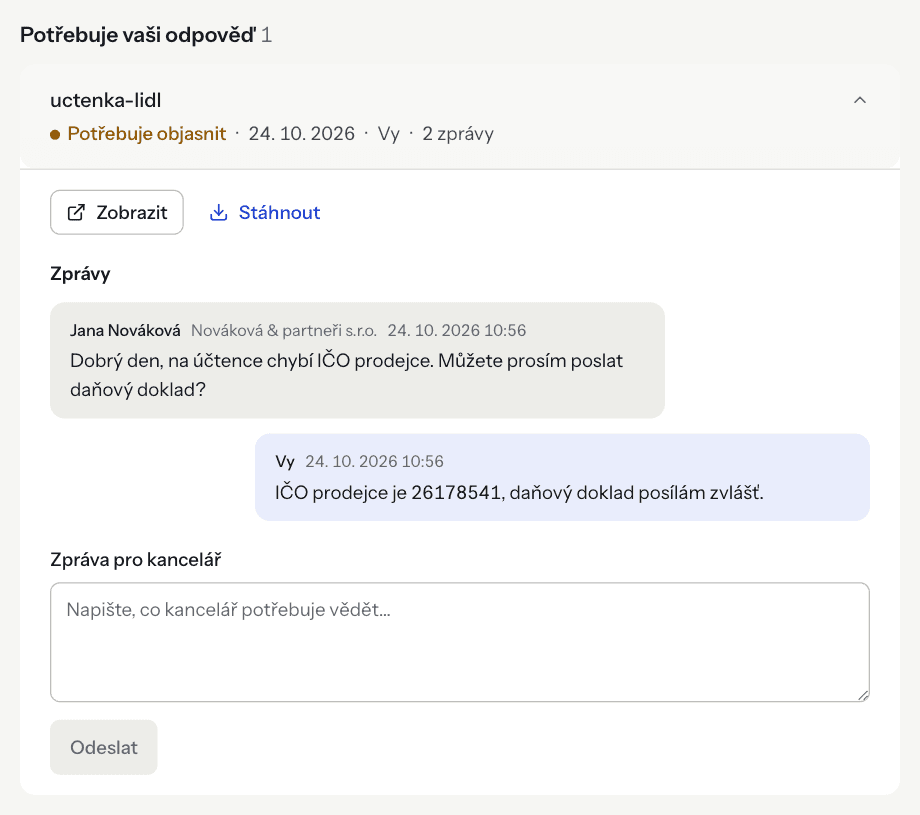
A typical flow when something is missing on a document:
- In the card's detail, write the client a comment (without ticking Office only).
- Move the card to a column that notifies the client, for example Needs clarification.
- The client gets an e-mail and sees the document at the top of the portal under Needs your reply.
- After they reply, move the card on.
E-mails the client receives#
All e-mails are sent in the language chosen for the contact:
- the workspace invitation,
- the sign-in code,
- a notice that you moved a document into a column that notifies the client,
- a notice about your comment (never for internal notes),
- a request sent back with your note,
- for recurring requests, a reminder before the due date and a notice once it has passed.
How the portal looks#
On the Tým plan and above, the portal, e-mails and signing pages can carry your logo and colours, and the “Powered by DOXIO” line can be hidden. Without your own branding, the portal header shows the DOXIO logo and the text names your organization. The settings are in Settings → Branding; plans are compared in Subscription and plans.
Troubleshooting#
- The client didn't get the invitation or the code. Ask them to check the spam folder. Check the address under Client contacts and use Resend invitation. For security, the portal never reveals whether an address is invited: a code only goes to an address that is a contact of an active workspace.
- That code isn't valid. For security, the portal shows the same error for a wrong, old or expired code. Codes are valid for 10 minutes and stop working after 5 wrong attempts. The client should use the code from the most recent e-mail, or send themselves a new one.
- Too many attempts. The client requested too many codes. They should wait a few minutes.
- This workspace isn't available. The client is signed in with a different address than the invitation went to, you removed them from the workspace, or the workspace is archived.
- Uploads are paused for now. Your organization's subscription is not active. The client can still view and download documents, but cannot upload or reply until you renew the subscription.
- The file's content doesn't match its extension. The file is not a real PDF, JPG or PNG (for example a renamed file). The client needs to save it in the right format.
- The file couldn't be processed. The PDF is probably damaged or password-protected.