Importing documents into Money S3
How to export documents from DOXIO as Money S3 XML, import them by hand through XML transfers or automatically with S3 Automatic, and check the result, including credit notes and reverse charge.
Updated October 28, 2026
On this page
You can export documents that have accounting data filled in (received and issued invoices, cash receipts and cash expenses) from DOXIO as a ZIP. The ZIP contains a money-s3.xml file and the document PDFs. You import it into Money S3 (Seyfor) with XML transfers (XML přenosy), which come with the base package. The documents are created with the posting rule (předkontace), VAT classification (členění DPH), number series, cost centre and cash register codes set in DOXIO, with the PDF attached.
How to export documents from DOXIO#
Click Export to accounting in one of these places:
- Client workspace → Board: the icon in a column header offers that column's cards. In a section marked Accounting documents it offers all cards; elsewhere only cards with accounting data.
- Client workspace → List: the button above the list offers the cards that match the current filter.
- Documents: the button in the header offers documents with accounting data in the open folder or filter.
In the Export to accounting dialog:
- Under Accounting software, choose Money S3. The program set in Settings → Accounting is preselected.
- Under Format, keep Money S3 XML.
Go through the Documents list. DOXIO checks every document and shows the reason for each problem. Warnings don't stop the export, but a document with an error can't be selected; fix it with Fix in accounting data. For Money S3, errors include:
- a missing cash register on a cash document;
- a missing tax point date (DUZP);
- a missing supplier VAT ID on a received invoice with VAT.
- By default only checked (confirmed) documents are offered. To add drafts, tick Include unchecked (draft) documents.
- Click Export N documents. The ZIP download starts right away. If it doesn't, use Download the ZIP again.
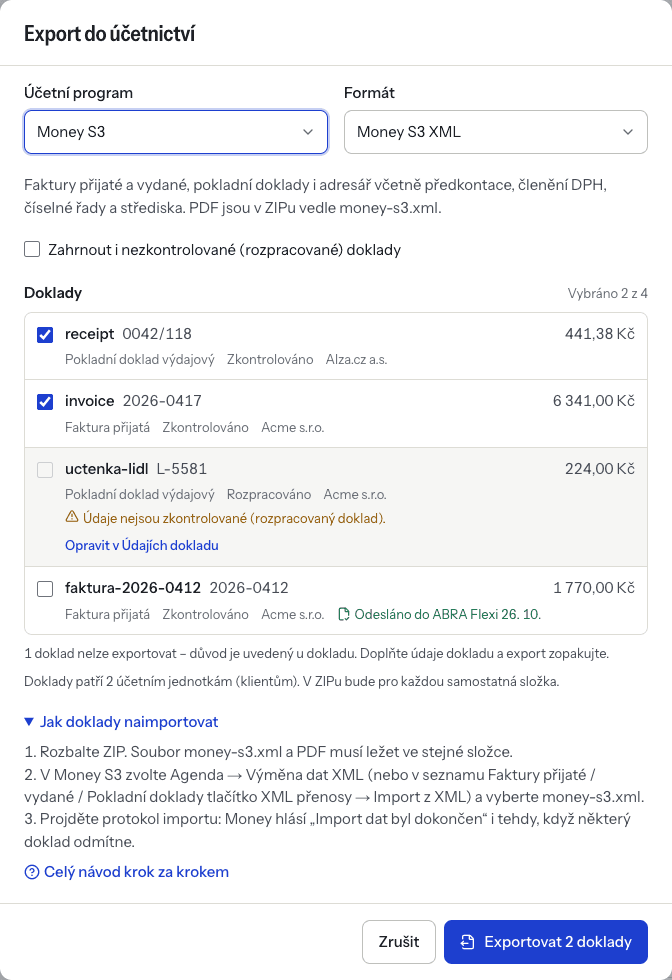
One export can contain at most 200 documents. Documents that were already exported are not preselected. If you tick one anyway, you must confirm I understand, export again, because importing it again may create a duplicate in Money.
Every export is listed in Settings → Accounting → Export history. You can download the ZIP again from there for 30 days. The export record itself is kept permanently.
What the ZIP contains#
The file has a name like doxio-money-s3-2026-10-27-1a2b3c4d.zip and contains:
| File | Content |
|---|---|
money-s3.xml | Money S3 XML data (UTF-8 encoding) with all documents and addresses. |
*.pdf | The document PDFs, named after the document number. If a signed PDF exists, that one is used. They sit right next to money-s3.xml, because Money S3 only attaches a file that is in the same folder as the XML. |
- File
money-s3.xml- Content
- Money S3 XML data (UTF-8 encoding) with all documents and addresses.
- File
*.pdf- Content
- The document PDFs, named after the document number. If a signed PDF exists, that one is used. They sit right next to
money-s3.xml, because Money S3 only attaches a file that is in the same folder as the XML.
money-s3.xml contains:
- Address book: the partners on the documents. The company ID (IČO) is the key; a partner without IČO gets the VAT ID (DIČ) as the partner code.
- Received and issued invoices. A credit note (marked, or with a negative amount) is imported as an invoice with the credit note flag, see Credit notes.
- Cash documents (receipts and expenses) in the configured cash register.
Data on every document:
- issue date, tax point date, due date, variable symbol and partner;
- the VAT summary: 12 % goes to the reduced rate, 21 % to the standard rate;
- for foreign currency, the exchange rate and the amounts in that currency;
- posting rule, VAT classification, number series and cost centre;
- the PDF as an attachment.
Numbering:
- The supplier's invoice number is stored as the received document number (doklad došlý). Money assigns its own number from the number series.
- Issued invoices and cash receipts keep the DOXIO number if it is at most 10 characters long.
- Money won't accept a longer number. The document then gets a number from the series, and the DOXIO number is kept as the reference number for the VAT control statement.
Documents with line items are exported with their items, the others only with the VAT summary. Code lengths are limited in Money S3:
- the number series: at most 5 characters;
- the posting rule, VAT classification, cost centre and cash register: at most 10 characters.
Use exactly the codes that exist in your Money agenda.
Credit notes#
A document marked as Corrective tax document (credit note), or with a negative total, is imported as an invoice with the Dobropis (credit note) flag:
- The number series is Series / document type for credit notes from the accounting settings (at most 5 characters); when it is empty, the usual invoice series is used.
- The matching symbol (párový symbol) is the corrected invoice's variable symbol (when unknown, its number if it is numeric).
- The tax point date of the credited document is filled in when the credit note is linked to an original document in DOXIO that has a tax point date.
- The note (Poznámka) starts with "Opravný daňový doklad k dokladu …" and the original invoice's number. The number comes from Number of the corrected document, otherwise from the linked document in DOXIO.
Cash documents have no credit note flag; a negative cash document is imported with negative amounts.
Reverse charge#
For a reverse-charge document DOXIO fills in the VAT classification by the reverse charge type. The default is 19Ř00P for received documents and 19Ř25 for issued domestic ones; other issued documents keep the usual classification from the default posting. You can change the codes in the accounting settings, also separately per supply code. A line whose supply code has a different classification than the document gets that classification itself.
How to import the documents into Money S3#
- Unpack the ZIP into one folder. Keep
money-s3.xmland the PDFs together. - In Money S3, open the agenda and accounting year the documents belong to.
Start the import in one of two ways:
- Agenda / Výměna dat XML imports every kind of record in the file at once: addresses, invoices and cash documents.
- The XML přenosy button in the Faktury přijaté (received invoices), Faktury vydané (issued invoices) or Pokladní doklady (cash documents) list imports only that list's records. If the file holds both invoices and cash documents, repeat the import in each list.
- In the wizard, choose import and the transfer (definition) for that kind of document. Pick
money-s3.xmlfrom the unpacked folder as the input file. - Finish the wizard and open the import report on its last page.
The user needs the access right to run XML transfers. See the XML přenosy manual and the Převody dat z a do Money S3 page for details.
Importing ISDOC instead#
If you only need the invoices, without posting, choose the ISDOC (e-invoice) format in DOXIO. Then in Money S3 use ISDOC import in the received invoices list. The ZIP holds one .isdoc file per invoice in the isdoc folder and the PDFs in prilohy. ISDOC carries no posting rule, number series or VAT classification, and it has no cash documents.
Automatic import with Money S3 Automatic#
Money S3 can pick up XML files by itself on a schedule. It does this with the S3 Automatic program and its XML přenosy – import dat task. DOXIO does not send files to Money or to FTP: you download the ZIP, unpack it into the watched folder, and S3 Automatic does the rest.
What you need:
- The S3 Automatic module. It is a paid module; in Money S3 START you can use it within the START edition's limits.
- A computer with a Windows user logged in. The computer may be locked, and Money S3 doesn't need to be running.
Possibly the XML Data Exchange module:
- Without it, the task can only use import definitions from the prepared lists (Připravené seznamy).
- Seyfor recommends your own definitions, because the prepared ones are overwritten whenever Money starts.
- Editing definitions requires XML Data Exchange.
Setting up the task:
- In Money S3, open Nástroje / S3 Automatic. Click Přidat úlohu (add task) and choose XML přenosy – import dat.
On the Obecné (general) tab, choose:
- the Agenda;
- the Účetní rok (accounting year): Dle systémového data switches the year by the current date;
- the Uživatel (user) whose settings the import runs under.
- On the Konfigurace tab, choose the Definice importu (import definition). You manage definitions in Money / Možnosti a nastavení / XML přenosy, on the Import tab.
- In the import definition, set Vstupní soubor(y) (input files) to the folder path with the mask
*.xml. You can also use a remote folder on an FTP server (FTP server tab). - On the Akce po importu (after import) tab, set the file to be moved (Přesunout) to another folder, or deleted (Smazat). Every DOXIO export is named
money-s3.xmlagain, so without moving it the next export would overwrite the previous file. - Optionally set a path for the Výstupní zpráva (import report) and a recipient to receive it by email.
On the Časový plán (schedule) tab, set:
- how often the task repeats, for example every 15 minutes (the range is 1–255 minutes or hours);
- the frequency: Denní, Týdenní or Měsíční (daily, weekly or monthly).
After that, just unpack each ZIP from DOXIO into the watched folder, with money-s3.xml and the PDFs side by side. Task runs are listed in the Historie událostí (event history) of S3 Automatic. The S3 Automatic manual describes the tasks in detail.
Checks after the import#
- Read the import report. It lists every rejected record with the reason.
- Open Faktury přijaté, Faktury vydané and Pokladní doklady. For each new document, check the posting rule, VAT classification, number series, tax point date and amounts. Money doesn't post a document that has no posting rule.
- Check that the PDF is attached to each document.
- Check the newly created companies in Adresář (address book).
- In DOXIO, exported documents carry an Exported to Money S3 label with the date. The export detail in Export history shows which documents were skipped and why.
Troubleshooting#
| Message / symptom | Cause and fix |
|---|---|
| Požadovaná číselná řada nebyla nalezena (number series not found) | The number series code from DOXIO doesn't exist in the Money agenda. Fix it in Accounting settings or on the document, then export again. |
| Neplatná zkratka předkontace (invalid posting rule code) | The posting rule from DOXIO doesn't exist in Money. Fix the code (at most 10 characters). The same applies to VAT classification, cost centre and cash register. |
| The document wasn't posted | The posting rule was missing. Add it as a default in DOXIO or directly in Money. |
| The PDF isn't attached | The PDF wasn't in the same folder as money-s3.xml. Unpack the whole ZIP into one folder and import again. |
| A document appears twice in Money | The same export was imported twice. Delete the duplicate in Money; in DOXIO, exported documents carry a label. |
| The import rejected a document in a locked period | Money doesn't accept documents into a locked period. Unlock the period or post the document differently. |
| A document is missing from the ZIP | It had an error during export and was skipped. The export detail in Export history shows why. |
| The automatic import loaded nothing | In the S3 Automatic event history, check three things: that the task runs, that a Windows user is logged in, and that the input file mask matches the folder you unpack the ZIP into. |
| The ZIP can't be downloaded any more | Files are kept for 30 days. Export the documents again. |
- Message / symptom
- Požadovaná číselná řada nebyla nalezena (number series not found)
- Cause and fix
- The number series code from DOXIO doesn't exist in the Money agenda. Fix it in Accounting settings or on the document, then export again.
- Message / symptom
- Neplatná zkratka předkontace (invalid posting rule code)
- Cause and fix
- The posting rule from DOXIO doesn't exist in Money. Fix the code (at most 10 characters). The same applies to VAT classification, cost centre and cash register.
- Message / symptom
- The document wasn't posted
- Cause and fix
- The posting rule was missing. Add it as a default in DOXIO or directly in Money.
- Message / symptom
- The PDF isn't attached
- Cause and fix
- The PDF wasn't in the same folder as
money-s3.xml. Unpack the whole ZIP into one folder and import again.
- Message / symptom
- A document appears twice in Money
- Cause and fix
- The same export was imported twice. Delete the duplicate in Money; in DOXIO, exported documents carry a label.
- Message / symptom
- The import rejected a document in a locked period
- Cause and fix
- Money doesn't accept documents into a locked period. Unlock the period or post the document differently.
- Message / symptom
- A document is missing from the ZIP
- Cause and fix
- It had an error during export and was skipped. The export detail in Export history shows why.
- Message / symptom
- The automatic import loaded nothing
- Cause and fix
- In the S3 Automatic event history, check three things: that the task runs, that a Windows user is logged in, and that the input file mask matches the folder you unpack the ZIP into.
- Message / symptom
- The ZIP can't be downloaded any more
- Cause and fix
- Files are kept for 30 days. Export the documents again.
If you use POHODA, see Importing into POHODA. For ABRA Flexi there is a direct connection.