Two-factor authentication and passkeys
How to turn on two-factor authentication with an authenticator app, save backup codes, add a passkey, and how the owner requires two-factor for the whole organization.
Updated October 27, 2026
On this page
Two-factor authentication protects your account even if someone learns your password: after your password, DOXIO also asks for a 6-digit code from an authenticator app on your phone, such as Google Authenticator, Microsoft Authenticator or 1Password. Everything is set up in Settings → Security.
How to turn on two-factor authentication#
Have your phone with an authenticator app ready.
- Open Settings → Security.
- Under Two-factor authentication, click Turn on.
- Enter your password and click Continue.
- In your authenticator app, add an account and scan the QR code. If scanning doesn't work, click Can't scan it? Enter the key by hand and type the Key into the app.
- In Code from the app, type the 6-digit code the app shows and click Check and turn on.
- Save your backup codes (see below) and click I've saved them.
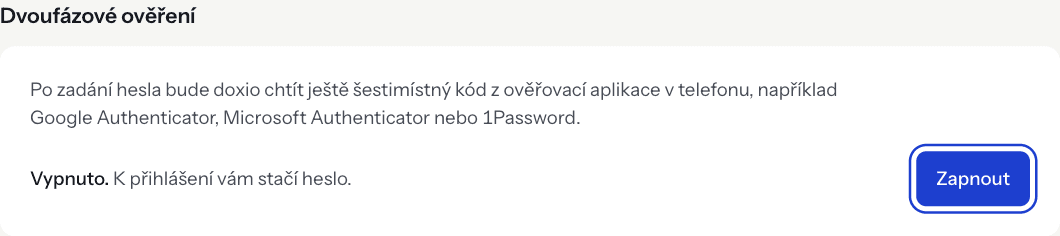
Once it is on, the status shows On. From your next password sign-in you will also enter a code from the app.
Backup codes#
When you turn it on, you get 10 backup codes. Each code works once, for when you don't have your phone. They are shown only once — copy them with Copy or save them with Download as .txt, ideally into your password manager.
To create new codes, click New backup codes, enter your password and click Create new codes. The old codes stop working.
Signing in with two-factor authentication#
- On the sign-in page, enter your e-mail and password.
- On the Confirm it's you screen, enter the 6-digit code from your app and click Confirm.
- If you don't have your phone with you, click Use a backup code instead and enter one of your backup codes.
If you tick Don't ask again on this device for 30 days, DOXIO won't ask for a code on that device for 30 days.
Passkeys#
A passkey lets you sign in with your fingerprint, face or screen lock instead of a password. The passkey stays on your device or in your password manager.
- In Settings → Security, under Passkeys, click Add a passkey.
- In Name, type something that tells your passkeys apart, e.g. “MacBook” or “iPhone”.
- Click Create passkey and confirm on your device.
On the sign-in page you then sign in with Sign in with a passkey. For each passkey you see when it was added and whether it is Synced across devices or This device only. You can Rename or Remove it.
How to require two-factor authentication for the whole organization#
The organization owner can make sure no member gets into DOXIO without two-factor authentication. This is available from the Kancelář plan (see Billing).
- Turn on two-factor authentication for yourself first — the option can't be ticked until you do.
- In Settings → Security, under Organization rules, tick Require two-factor authentication for every member.
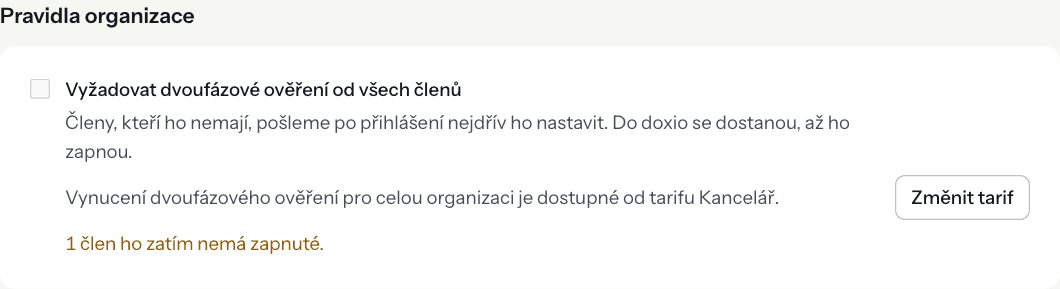
Below the option you see how many members don't have two-factor authentication yet. After signing in, DOXIO sends them to the Set up two-factor authentication page and lets them into the app once it is on. While the rule is on, two-factor authentication can't be turned off.
You can turn enforcement off at any time, even without the Kancelář plan. If the organization moves to a lower plan, enforcement that is already on stays in force.
Where you're signed in#
Where you're signed in lists the devices you are signed in on and when they were last active. Sign out an unknown device with Sign out, or all others at once with Sign out all other devices. If you don't recognise a device, sign it out and reset your password.
Troubleshooting#
“That code isn't right. Check the time on your phone and try the newest code.” Codes depend on the exact time. Turn on automatic time on your phone and enter the code the app shows right now.
“Too many wrong codes. Try again in 15 minutes.” After repeated wrong codes, verification is locked for 15 minutes. Wait and try again, or use a backup code.
The Turn off button is disabled. Your organization requires two-factor authentication, so it can't be turned off. Only the owner can switch the rule off.
“This browser doesn't support passkeys.” Add the passkey in another, up-to-date browser or device, or sign in with your password.
Roles and permissions in the organization are described in Team and roles.