AI document extraction
How to switch on the Document extraction (AI) module, what AI reads from invoices and receipts, how to review and confirm the result, how many pages the AI packs include and where documents are sent.
Updated October 28, 2026
On this page
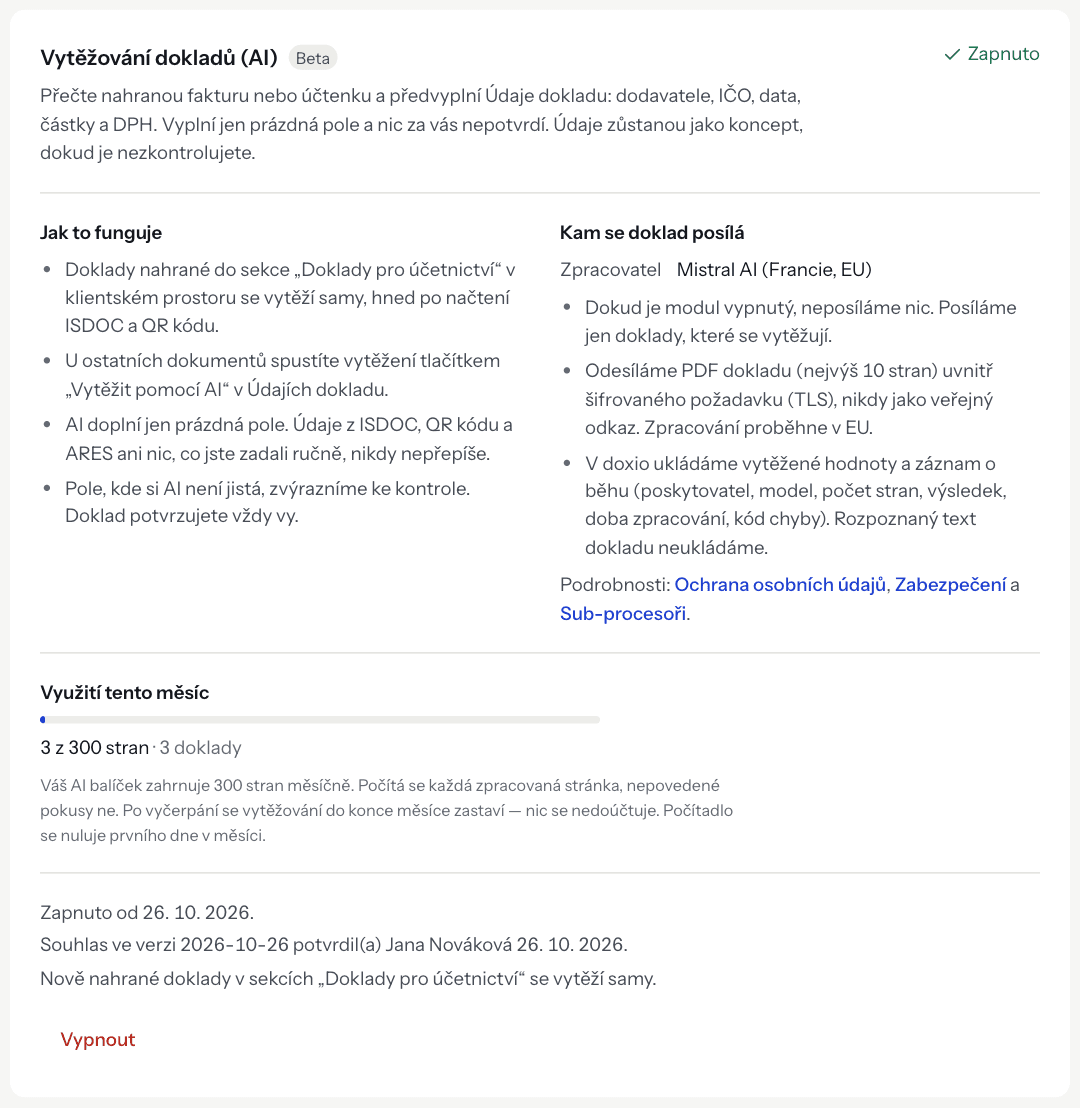
The Document extraction (AI) module reads an uploaded invoice or receipt and pre-fills the accounting data: supplier, company ID, dates, amounts and VAT. AI only fills empty fields and never confirms anything for you – the data stays a draft until you check it. The module is currently in Beta.
What you need#
- Accounting turned on – AI fills in the accounting data, so without it there is nothing to fill. Turn it on in Settings → Accounting.
- An AI pack – extraction is a paid add-on to the subscription. Without a pack the module cannot be switched on.
- The organization owner – only the owner can switch the module on and off. Admins see its state but cannot change it.
AI packs#
Choose a pack in Settings → Billing under AI document extraction. The owner or an admin can buy, change or cancel it. It is billed together with the subscription in the same interval (monthly or yearly).
| Pack | Pages a month | Price a month |
|---|---|---|
| 300 pages a month | 300 | CZK 290 |
| 1,500 pages a month | 1,500 | CZK 990 |
| 5,000 pages a month | 5,000 | CZK 2,490 |
- Pack
- 300 pages a month
- Pages a month
- 300
- Price a month
- CZK 290
- Pack
- 1,500 pages a month
- Pages a month
- 1,500
- Price a month
- CZK 990
- Pack
- 5,000 pages a month
- Pages a month
- 5,000
- Price a month
- CZK 2,490
With yearly billing you pay ten times the monthly price. A pack can be added to any plan.
Buying or upgrading a pack is billed right away (the prorated part up to the end of the period). Downgrading or cancelling is not prorated and nothing is refunded: a cancelled paid pack stays until the end of the period, an unpaid one stops at once. During the trial you can extract at most 50 pages, whichever pack you choose.
Every processed page counts – only the pages the AI actually reads. The AI reads at most 5 selected pages of a document (if you need more, contact us and we will adjust the limit, up to 8): a one- or two-page document whole, a longer one only the pages you choose. The other pages are not sent anywhere and do not count. When extraction fails, the pages go back to the limit. Once the limit is used up, extraction stops until the end of the month – nothing is charged extra. The counter resets on the first day of the month (Czech time). Your usage is shown in Settings → Modules under Usage this month.
How to switch the module on#
- Make sure accounting is on and an AI pack is selected.
- Open Settings → Modules and find the Document extraction (AI) card.
- Read the text under Consent to processing.
- Tick As the organization owner, I agree to the consent text (version …).
- Click Switch on extraction.
The card then shows since when the module is on and who accepted the consent. You can switch it off at any time with Switch off – no further documents are sent, and values AI has already filled in stay in the accounting data.
How to run extraction#
Automatically in a client workspace#
One- or two-page documents uploaded to a section marked Accounting documents in a client workspace are extracted automatically, right after the ISDOC and QR code are read. Meanwhile the card shows Extracting…. A longer document is not extracted automatically: the card shows Choose pages to extract, and in the accounting data you pick the pages the AI should read with Choose pages to extract (until then nothing is sent or counted). After an ISDOC e-invoice is uploaded, AI does not run automatically – its data is already exact.
Manually on any document#
- Open the document and its Accounting data tab.
- Click Extract with AI. This usually takes 10–30 seconds.
- If the document has more than 2 pages, the Choose pages to extract picker opens with thumbnails of every page. Page 1 and the pages that most likely hold the VAT breakdown and the amount due are preselected (DOXIO tells from the document's text, without AI). Adjust the selection – at most 5 pages, the counter shows e.g. 3 / 5 – and click Extract selected pages. Only the selected pages count towards the limit. You can stay on the page or close it; the extraction finishes on its own. You can extract again with other pages.
- When it finishes, DOXIO shows how many fields it filled and the page reloads with the new values.
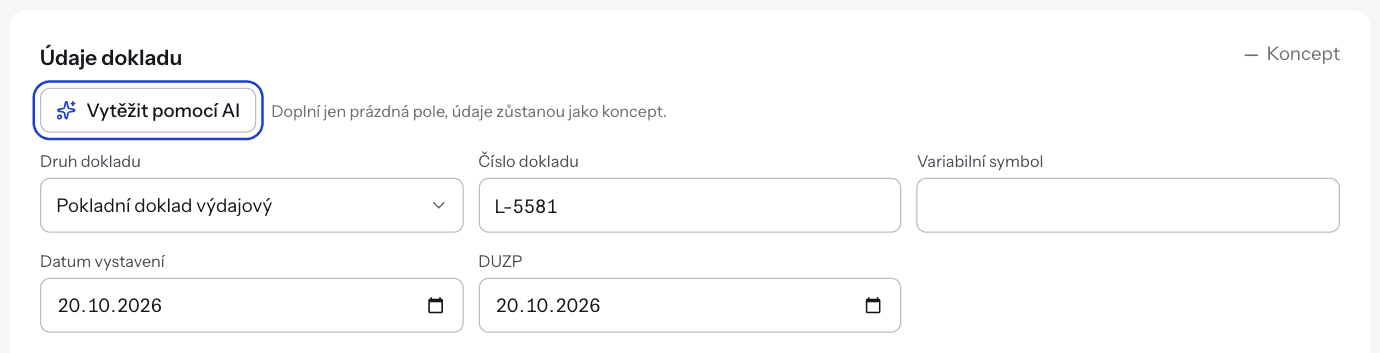
Only owners and admins see the button, and only on a document that is not confirmed. Reopen a confirmed document with Edit first.
What AI reads from a document#
- the document type (invoice, or receipt – which is posted as a cash document),
- document number and variable symbol,
- issue date, tax point date and due date,
- supplier and customer: name, company ID, VAT ID, address and, for the supplier, bank account number, bank code and IBAN,
- currency, the VAT breakdown by the 21 %, 12 % and 0 % rates, and the total due,
- the line items,
- on a corrective tax document (credit note), the number of the document it corrects,
- reverse charge: whether it is domestic, goods or services from another EU country, or services from outside the EU, and for the domestic one also the supply code (kód předmětu plnění) when it is printed or clear from the supply (for example construction work = 4).
Whether an invoice is received or issued is decided not by AI but by DOXIO, from your company's ID / VAT ID (in a client workspace, the client's). Only PDFs can be extracted.
Order of sources#
AI never overwrites data from another source. The order is:
- ISDOC – the e-invoice is read exactly; AI does not run automatically after it is uploaded.
- QR code (QR payment, QR invoice) – DOXIO reads it itself, without AI and without a paid pack; it works even with the module off.
- AI – fills only the fields that are still empty.
AI does not change values you entered by hand, data from ARES, or a field you cleared yourself.
How to review and confirm the result#
- The accounting data shows Extracted by AI – please check. Fields filled by AI are marked AI; hover over the mark to see the AI's confidence in percent.
- Fields the AI is unsure about are highlighted and marked check. These include values that failed a check: VAT does not match the base or the sum does not match the total, an invalid company ID, VAT ID or IBAN, or a mismatch with ARES.
- Correct what is needed. An edited field is marked as manual.
- Click Confirm.
DOXIO verifies a valid company ID in ARES; when the name and VAT ID match, the confidence for the counterparty goes up.
Data protection#
- Nothing is sent while the module is off, and only the documents being extracted are sent.
- The processor is Mistral AI SAS (Paris, France); processing happens in the EU.
- Only the selected pages of the document (at most 5) are sent, as a PDF inside an encrypted request (TLS), never as a public link. DOXIO does not send the other pages.
- When the main document-reading model is unavailable, DOXIO sends the same document once to a backup model of the same processor (Mistral AI). The accounting data then shows Extracted with the backup model. Pages are counted only once.
- DOXIO stores the extracted values (deleted with the document) and a run record: provider, model (including whether the backup model was used), page count, result, processing time and error code. The recognised text of the document is not stored, and document content is not written to logs.
- Switching on, switching off and every extraction are recorded in the organization's audit log, without document content.
- By switching the module on, the owner instructs DOXIO on behalf of the organization to process the documents. This is not consent from the people named in the documents – the organization remains responsible for the legal basis for processing their data.
Details: Privacy, Security and Subprocessors.
Troubleshooting#
- "Document extraction is off. The owner can switch it on in Settings → Modules." – the module is not on, or it is paused because of new consent terms or a missing pack.
- "The monthly limit of … pages has been reached." / label AI extraction limit reached – wait for the next month or choose a bigger pack.
- "AI cannot read this file. Only PDFs can be extracted." – fill in the data by hand.
- "The accounting data is confirmed. Reopen it for editing before extracting again." – click Edit and run extraction again.
- "AI found nothing new. It only fills empty fields." – every field AI can read was already filled from another source.
- Extraction failed (service busy, no answer in time) – click Try again. Pages the AI did not process because of the error do not count towards the limit.